
Appearance
Using the Easy MCP AI Audit Log
Use the Audit Log to investigate what happened during MCP requests, including successful calls and rejected authentication attempts.
Open the Audit Log
- In WordPress, go to Easy MCP AI > Audit Log.
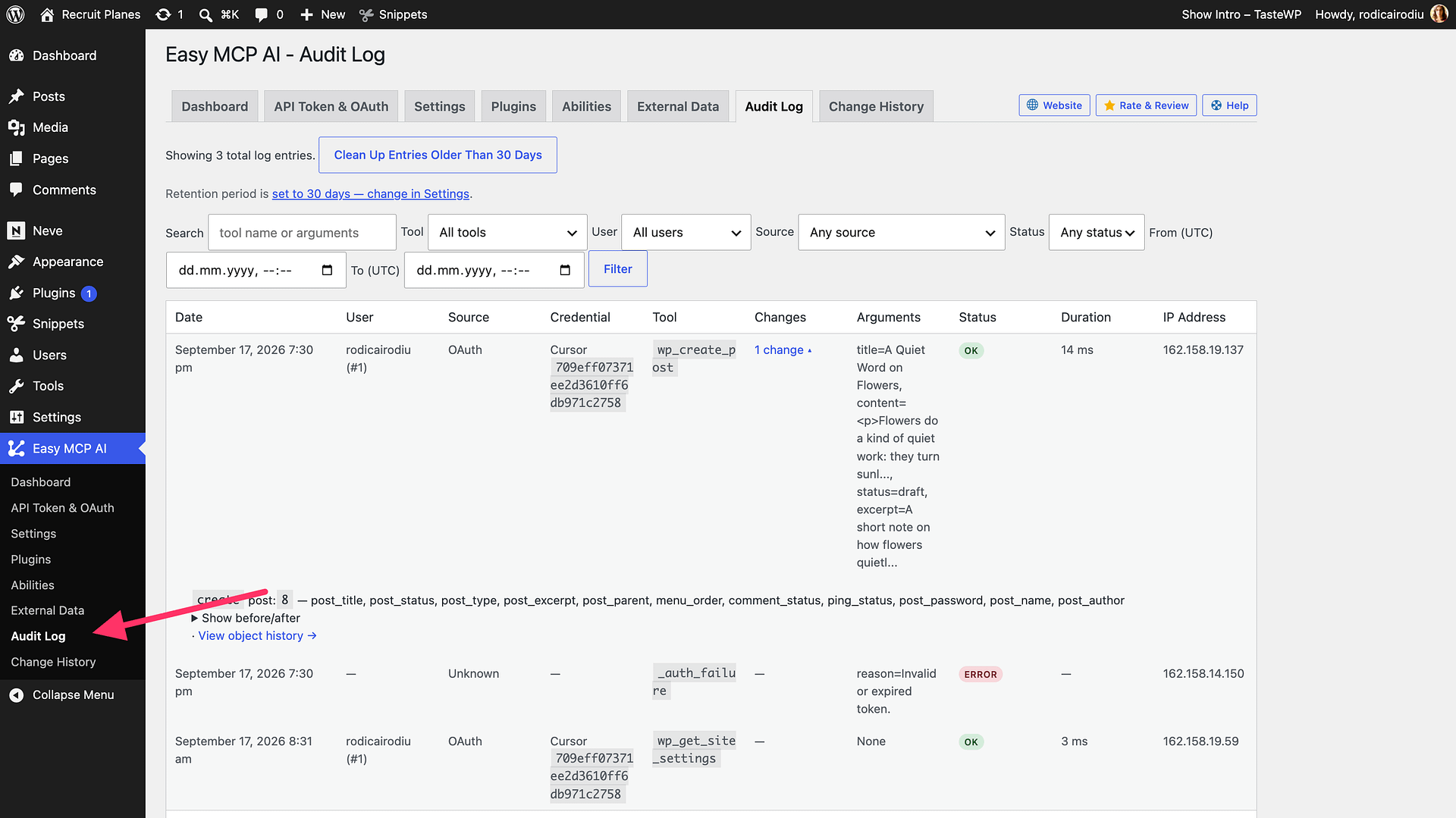
Find the Entry You Need
Use Search… to match tool names and recorded argument text, then narrow results with filters:
- Tool
- User
- Source
- Status
- From (UTC date and time)
- To (UTC date and time)
Use Clear to remove all active filters at once.
Read the Identity and Outcome Fields
- User: the WordPress account whose permissions were applied.
- Source: where authentication came from (for example API key or OAuth). Older rows may show an unknown source.
- Credential: the token or OAuth client identifier used by the connection (without exposing the secret).
- Tool: the MCP tool that was requested.
- Status: outcome of the request (success vs. errors/refusals/authentication failures).
- Duration: how long the request took from start to completion.
- IP Address: the request origin recorded by the plugin.
Read these fields together to answer: who acted, through which credential/client, what tool ran, and whether the action completed successfully.
Retention
Audit logging and retention are configured in Easy MCP AI > Settings. Use Clean Up Entries Older Than … Days to prune old rows automatically.