

Appearance
Troubleshooting Easy MCP AI Connection Issues
If your AI assistant will not connect to your site, work through the three steps below. Most connection failures are not in the plugin itself. They come from the hosting, CDN, security, or caching layer sitting in front of WordPress, and these steps identify which one it is in a couple of minutes.
In this article
If you receive HTTP 405 while saving settings or connecting, see Fix HTTP 405 Errors.
The plugin has all of this built in. You do not need to run any commands.
Step 1: Run the Diagnostics Inside WordPress
- Go to Easy MCP AI > Dashboard in your WordPress admin.
- Find the Diagnostics card and press Re-run.
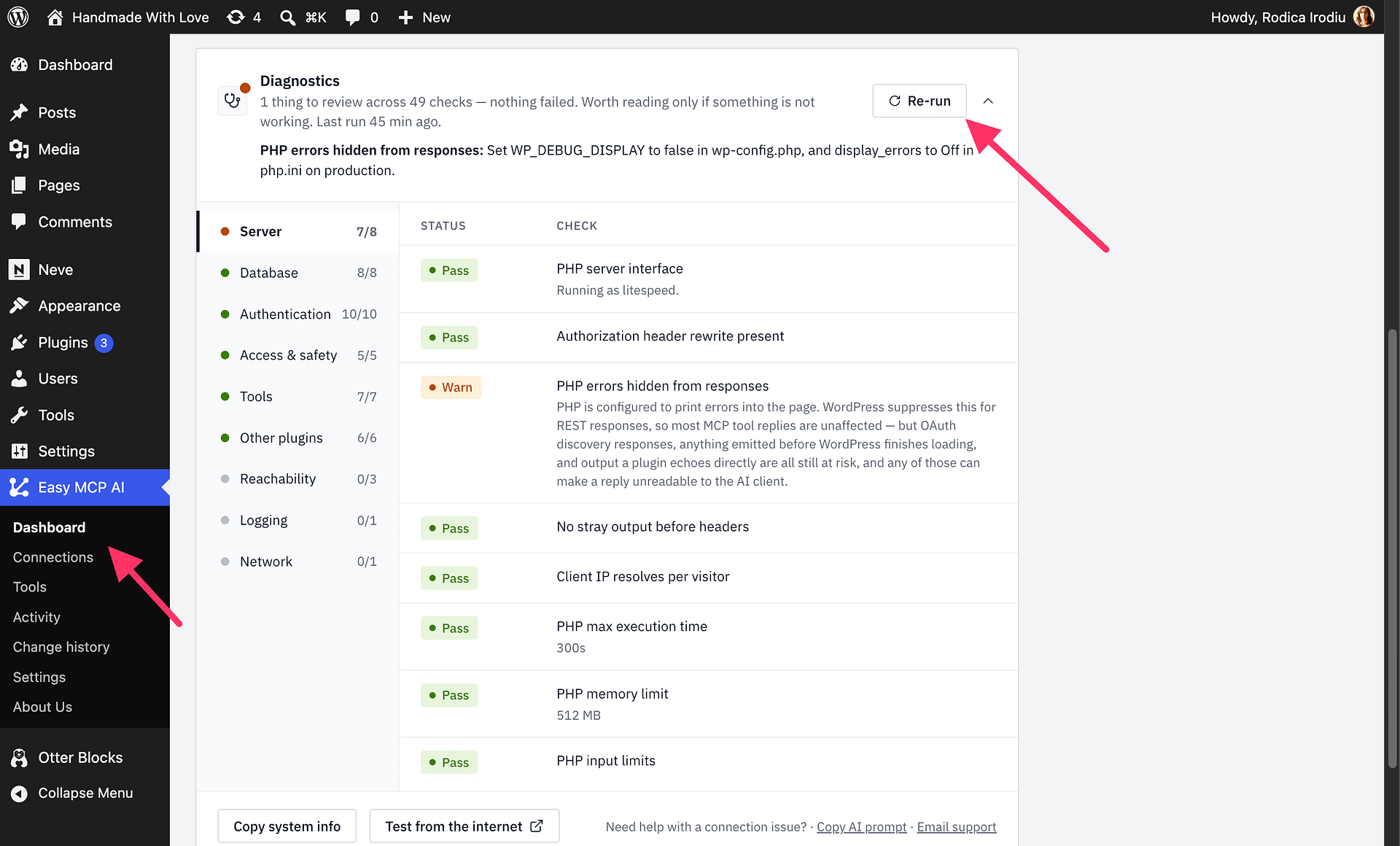
Easy MCP AI keeps the last results for slower checks and shows when they were measured in a Checked [time ago] line. After you change your site address or permalinks, affected results may be marked out of date. Connection checks can also rerun automatically in the background while the Dashboard or connection flow is open. Press Re-run when you need a fresh result from every diagnostic group; automatic connection checks do not run the complete suite.
How to Read the Results
| Result | Meaning |
|---|---|
| Pass | Checked and healthy. |
| Warn | A sign worth ruling out, not proof of a fault. |
| Fail | A directly observed fault. Start here. |
| Skipped / Unknown | The check could not run. This proves nothing either way. Do not read it as a pass or as a failure. |
Anything marked BLOCKING is what to fix first.
Some built-in checks run from inside WordPress, but checks that contact your public MCP endpoint can still be intercepted by a host, CDN, WAF, or bot filter before Easy MCP AI receives them.
Step 2: Test the Connection from the Internet
On the same Diagnostics card, press Test from the internet.
This opens the external checker with your site address already filled in. It probes your site the way an AI assistant's servers would, from outside. It reports whether your site is reachable, whether the plugin answers, whether OAuth discovery works, and whether anything in front of WordPress is intercepting the request.
Step 1 and Step 2 answer different questions, and you need both. Step 1 tells you whether WordPress and the plugin are healthy. Step 2 tells you whether anything outside can actually reach them. A site can pass every check in Step 1 and still be unreachable from the internet.
The Usual Causes
Most connection problems come down to one of these:
The Authorization header is stripped before it reaches PHP. This is the most common cause of "it worked yesterday and now my token is rejected". An orange Authorization-header warning does not automatically mean the connection is broken. On some FastCGI setups, this diagnostic can be inconclusive even when authentication works, so you can ignore the warning if the checks in the Authentication group pass and your AI connector works. On Apache or LiteSpeed, also check
.htaccessrule order: an earlier custom redirect or security rewrite rule ending in[L]stops further rewrite-rule processing for that pass, so a later Authorization rule may not run.If an Authentication check fails, refresh WordPress's rewrite rules and run the diagnostic again:
- Go to Settings > Permalinks and click Save Changes without changing the permalink structure.
- Return to Easy MCP AI > Dashboard, find Diagnostics, and press Re-run.
If authentication passes and your connector works after the check runs, no further action is needed. If authentication or the connector still fails, follow the server troubleshooting below. If the failed check offers Add the rewrite rule to .htaccess, use it and let the checks run again. If
.htaccessis not writable, choose Copy the rule and paste the plugin-generated Authorization rule at the top of your site's.htaccessfile, before any custom redirect or security rewrite rules that end with[L]and above the WordPress block. After changing the rule order, return to Easy MCP AI > Dashboard, find Diagnostics, and press Re-run. On Apache with FastCGI, ask your host to enableCGIPassAuth On; if the server usesmod_fcgid, it may needFcgidPassHeader Authorizationinstead. On nginx, the server configuration needs the equivalentfastcgi_param. Ask your host to confirm that the relevant rule applies to the active document root, that its configuration allows the required.htaccessoverride, and that security rules are not stripping the header. Share the diagnostic details with them.A REST security plugin blocks anonymous requests before Easy MCP AI can authenticate them. Easy MCP AI can bypass anonymous
401blockers only on Easy MCP AI REST routes. It does not override explicit403policy decisions. If the connection is still blocked, re-run Diagnostics and use the conflict details to identify the blocking plugin.Easy MCP AI's IP whitelist blocks the cloud AI client before OAuth approval. OAuth is the sign-in flow that lets you approve the client's access to WordPress. The approval screen may never appear, or the client may receive HTTP
403. Cloud services such as Claude.ai connect from the provider's outbound servers, not your home or office IP address, so allowing only your own address does not allow the cloud client.- In WordPress admin, open Easy MCP AI > Activity and the Audit log tab. Set Status to Auth failed and click Filter. Inspect the failed connection's Arguments for
reason=ip_forbidden. This identifies the plugin's own whitelist rejection, unlike an upstream host firewall or web application firewall (WAF) block that prevents the request from reaching the plugin. - If that reason appears, go to Easy MCP AI > Settings > Advanced > IP whitelist. Obtain the AI provider's current published outbound IP address or CIDR range (a group of IP addresses) from its official networking documentation. For Claude.ai, use Anthropic's outbound addresses, not your office address. Add each address or range on a separate line, keeping any existing permitted addresses.
- Click Save changes, then reconnect Claude.ai. Confirm that the normal WordPress authorization screen appears and that the retried connection no longer produces an activity entry with
reason=ip_forbidden.
- In WordPress admin, open Easy MCP AI > Activity and the Audit log tab. Set Status to Auth failed and click Filter. Inspect the failed connection's Arguments for
A host, CDN, or firewall bot-challenge or rate limit answers before WordPress does. An AI assistant is not a browser, so anything that requires solving a JavaScript or CAPTCHA challenge will block it permanently. If you see HTTP
403,500, or202together with a CAPTCHA, robot challenge, or host-branded response page, the edge layer answered before WordPress. HTTP202by itself is not proof. An HTTP429or “Rate limit exceeded” response can also come from host-level rate limiting, such as Imunify360 WebShield, before the request reaches WordPress.If A9 reports Something in front of WordPress is refusing the AI assistant with HTTP
403 Forbidden, the request was refused before Easy MCP AI could respond. An unauthenticated probe that reaches the MCP endpoint should receive401 Unauthorized, Easy MCP AI's authentication challenge. Test from the internet and A9 can use different request profiles, so a passing internet test confirms only that its own request reached the endpoint; it does not rule out a block against the request A9 tested.To investigate, re-run Diagnostics and note the endpoint and any request identity shown in the failure details. In the MCP endpoint's
401 Unauthorizedresponse, check theresource_metadataURL in theWWW-Authenticateheader; this is the discovery address the client is being directed to use. Check the matching host, CDN, or WAF event for that exact URL and request identity, or ask your host to identify the blocking rule and request. Ask them to add a narrow exception for that request identity and the exact blocked discovery URL or MCP endpoint path, such as/wp-json/easy-mcp-ai/v1/mcp. Do not assume the client needs root/.well-known/addresses, and do not disable site-wide security or Easy MCP AI authentication. For Cloudflare-specific checks and targeted rules, see Troubleshoot Cloudflare Blocking Easy MCP AI Connections.After the rule change, re-run Diagnostics, run Test from the internet, and reconnect the affected client. If the unauthenticated A9 probe returns
401 Unauthorizedinstead of403, it has reached Easy MCP AI and the endpoint is still requiring authentication.For other bot-challenge or rate-limit blocks, check the
resource_metadataURL in the MCP endpoint's401 Unauthorizedresponse and identify the exact blocked URL and request identity in the host, CDN, or security event. Ask the provider to add a narrow exception for that request identity and URL, rather than broadly allowing all requests to/wp-json/easy-mcp-ai/or/.well-known/or disabling security globally. After the change, run Test from the internet, confirm the response is from WordPress (not a host challenge page), and reconnect your AI client.The host blocks a discovery address before WordPress sees it. Easy MCP AI prefers OAuth discovery below the MCP endpoint when usable. When the MCP endpoint can be used as the issuer, Claude.ai, ChatGPT, and Codex can use this discovery address even if the root
/.well-known/addresses are blocked. Update Easy MCP AI, reconnect your client, and run Test from the internet before changing root routing. In the MCP endpoint's401 Unauthorizedresponse, check theresource_metadataURL in theWWW-Authenticateheader. Open that exact URL directly; it should show a JSON discovery document, not a404,403, or challenge page. Follow the advertised discovery URL checks to test the path your connection actually uses. If it works, you do not need to change root routing. Not every permalink setup, client, or fallback can use below-endpoint discovery. An API key does not bypass an edge block on the MCP endpoint itself. If your client requires root discovery or below-endpoint discovery is unavailable, ask your host to route the root discovery paths to WordPress or install the plugin-generated discovery documents in your site's public-root.well-known/directory, then run Test from the internet and reconnect.If your client requires root discovery, or the below-endpoint discovery URL is unavailable, and ChatGPT reports "Couldn't discover OAuth settings" while the required root discovery address returns
404or403, the web server or a proxy in front of WordPress answered instead of WordPress. On nginx, your host or server administrator can pass the root addresses to WordPress by adding rules like these to the active site configuration and then reloading nginx:nginxlocation ^~ /.well-known/oauth-protected-resource { try_files $uri /index.php?$args; } location ^~ /.well-known/oauth-authorization-server { try_files $uri /index.php?$args; } location ^~ /.well-known/openid-configuration { try_files $uri /index.php?$args; }If you do not manage the server yourself, send these rules to your hosting provider. To confirm this root-routing change, open the required root discovery URL or URLs in your browser, replacing
your-site.comwith your domain. Each should show a JSON document, not a404or403page. Then go to Easy MCP AI > Dashboard, press Re-run on the Diagnostics card, press Test from the internet, and reconnect your AI client with OAuth.A security or caching plugin interferes with the sign-in redirect, so the approval screen never appears or approving appears to do nothing. A maintenance or coming-soon mode can also replace the OAuth approval screen, which blocks sign-in even when other checks look fine. Temporarily make the WordPress front-end approval screen publicly accessible, run Test from the internet once more, reconnect your AI client, and confirm the normal WordPress approval screen appears.
The diagnostics show
Failed Every API token can see tools - "Claude" (user 1) sees no tools - the WordPress user this token belongs to does not have permission for any of them.This usually means the token is assigned to an unresolved user (shown as unknown) or a user that lacks permission for every selected tool. Open the token in Creating and Managing API Tokens, reassign it to an active WordPress account with enough capability for the tools you need, enable those tools, and save. Then refresh tools in your AI client or start a new conversation so it discovers the updated tool list instead of using the old cached empty one. For the refresh steps in each AI client, see Enabled Tools Not Showing in Your AI Client.
Two more quick checks worth ruling out:
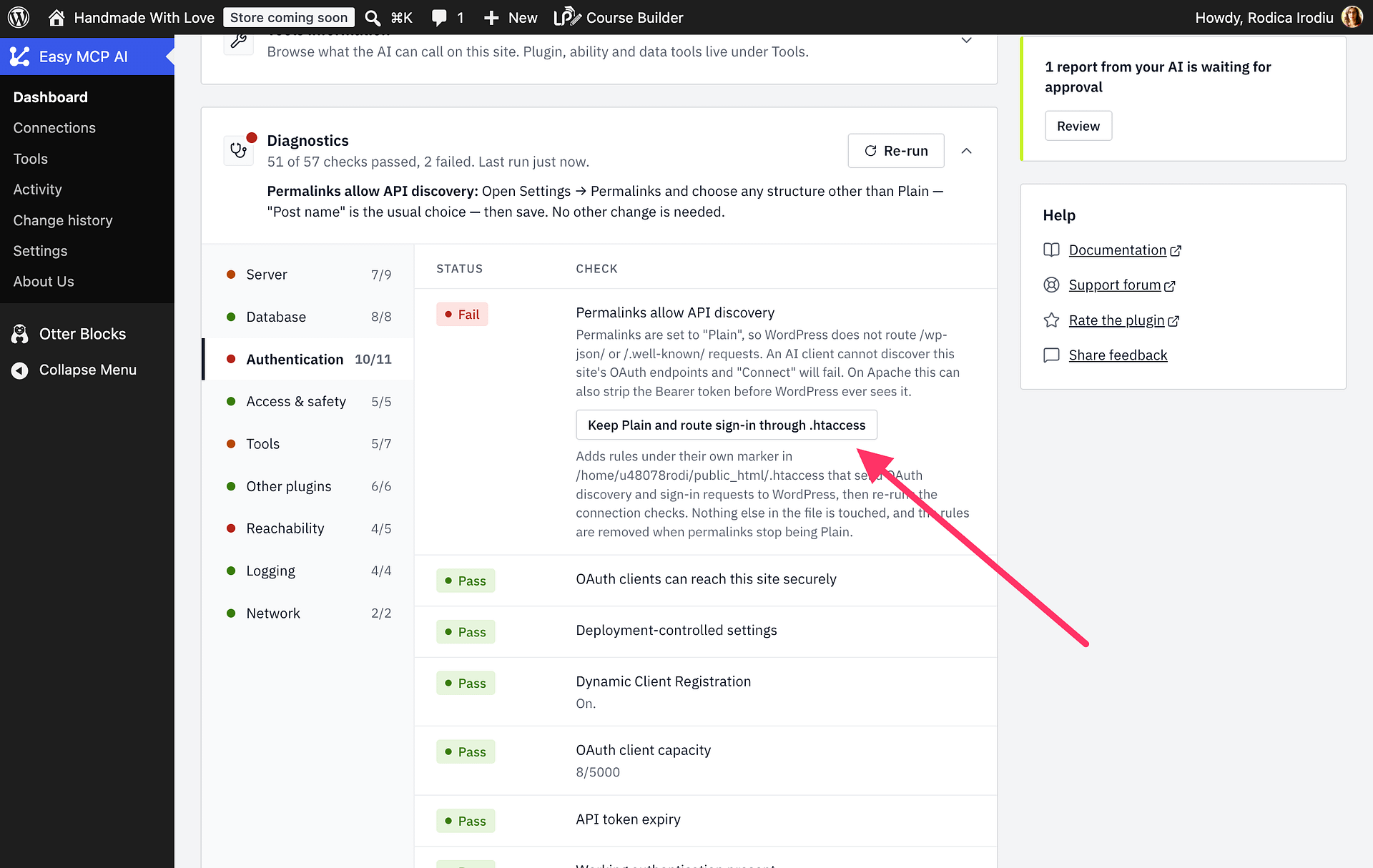
- The endpoint returns 404. Open Easy MCP AI > Dashboard and press Re-run on the Diagnostics card. Follow the failed Plain-permalink routing check. On Apache or LiteSpeed, choose Keep Plain and route sign-in through .htaccess to add the OAuth discovery and sign-in rules without changing your permalink structure; Diagnostics reruns the connection checks automatically. If PHP cannot write
.htaccess, choose Copy the rules and add the block shown in Diagnostics to your site's.htaccessfile or ask your host to add it. nginx, Caddy, and IIS do not use.htaccess; follow the server-specific guidance in Diagnostics or choose a non-Plain permalink structure.
- Another MCP plugin is active on the same site. Multiple MCP plugins can try to handle the same root
/.well-known/OAuth discovery URLs. When that happens, an AI client may reach the other plugin's OAuth handler or report that the Easy MCP AI endpoint was not found, even when the endpoint itself exists. If you do not need both plugins, disable the other MCP plugin and reconnect. If both need to stay active, connect Easy MCP AI with an API token instead of OAuth. See Alternative: Connect with an API Token and Creating and Managing API Tokens. As another option, setEASY_MCP_AI_OAUTH_ENABLEDtofalseto stop Easy MCP AI from publishing its OAuth registration, authorization, and discovery endpoints; Easy MCP AI then accepts API-key connections only. See Configuring Easy MCP AI with wp-config.php Constants.
Step 3: Send Support the Details
If it is still not working, the support team is happy to look at it directly. On the same Diagnostics card:
- Press Copy System Info & Diagnostic and save the result.
- Press Test from the internet and copy that result too.
- Reach out through the contact page and paste both results into your message.
Please include:
- What you were trying to do.
- What happened instead, including the exact error your AI client shows. "It says it cannot connect" is much harder to act on than the real wording.
- When it started, and anything that changed just before: a plugin update, a host migration, a new security or caching plugin, a CDN being switched on.
- The diagnostics from Step 1.
- The external test result from Step 2.
- Your site address, if you are willing to share it. It is the single thing that lets the team reproduce the problem instead of guessing.
The report never includes passwords, tokens, or anything identifying your users. Those are removed automatically and appear as "[details withheld]". Leave them as they are.
Investigate it yourself with AI
The Diagnostics card also has a Copy AI Prompt button. It produces a ready-made prompt you can paste into any AI assistant along with your diagnostics, if you would rather dig in yourself first.
Security
If you identify a potential security vulnerability in this plugin, please disclose it responsibly. Follow the protocols on the Themeisle Security Page.