

Appearance
Getting Started with Easy MCP AI
Easy MCP AI is the most complete end-to-end MCP (Model Context Protocol) solution for WordPress. It runs an MCP server directly inside your WordPress site, letting AI assistants such as Claude Desktop, Cursor, or ChatGPT securely read and manage your content.
In this article
What is the Model Context Protocol?
MCP is an open standard created by Anthropic that lets AI assistants securely connect to external tools and data sources. It is supported by Anthropic, OpenAI, Google, and dozens of IDEs.
The plugin is pure PHP and runs entirely inside WordPress on any standard hosting. It needs no Node.js, long-running processes, or external proxies.
How to Install Easy MCP AI
Method 1: Install from WordPress.org
- Log in to your WordPress dashboard.
- Navigate to Plugins > Add New Plugin.
- Search for "Easy MCP AI".
- Click Install Now on the plugin.
- Click Activate once installation completes.
Method 2: Upload Manually
- Download the plugin ZIP file from WordPress.org.
- In your WordPress dashboard, go to Plugins > Add New Plugin > Upload Plugin.
- Choose the downloaded ZIP file and click Install Now.
- Click Activate after installation.
Easy MCP AI supports WordPress Multisite. You can activate it on individual subsites without activating it across the network. Each subsite where you activate the plugin has its own MCP endpoint, settings, and logs.
First-Time Setup
After activation, Easy MCP AI guides you through a three-step setup:
- Connect: Choose your AI client and follow its OAuth or API-key instructions. This connects the client to your WordPress site and authorizes it to make requests.
- Verify: Send a request from your AI client. Easy MCP AI detects the request to confirm that the client can reach your site.
- Try prompts: Copy a starter prompt and use it in your AI client to confirm that it can access WordPress tools. Finish the setup when the prompt works.
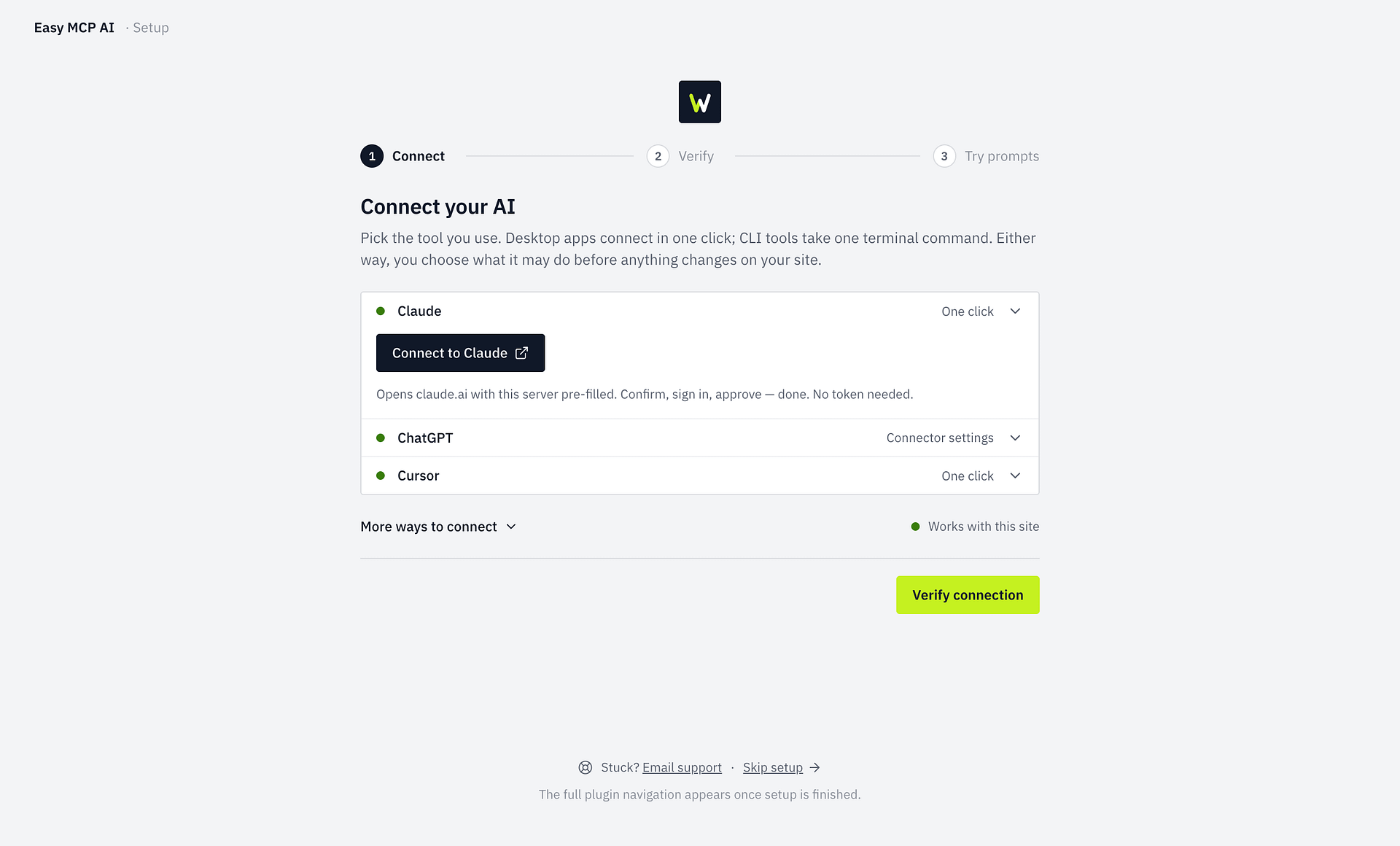
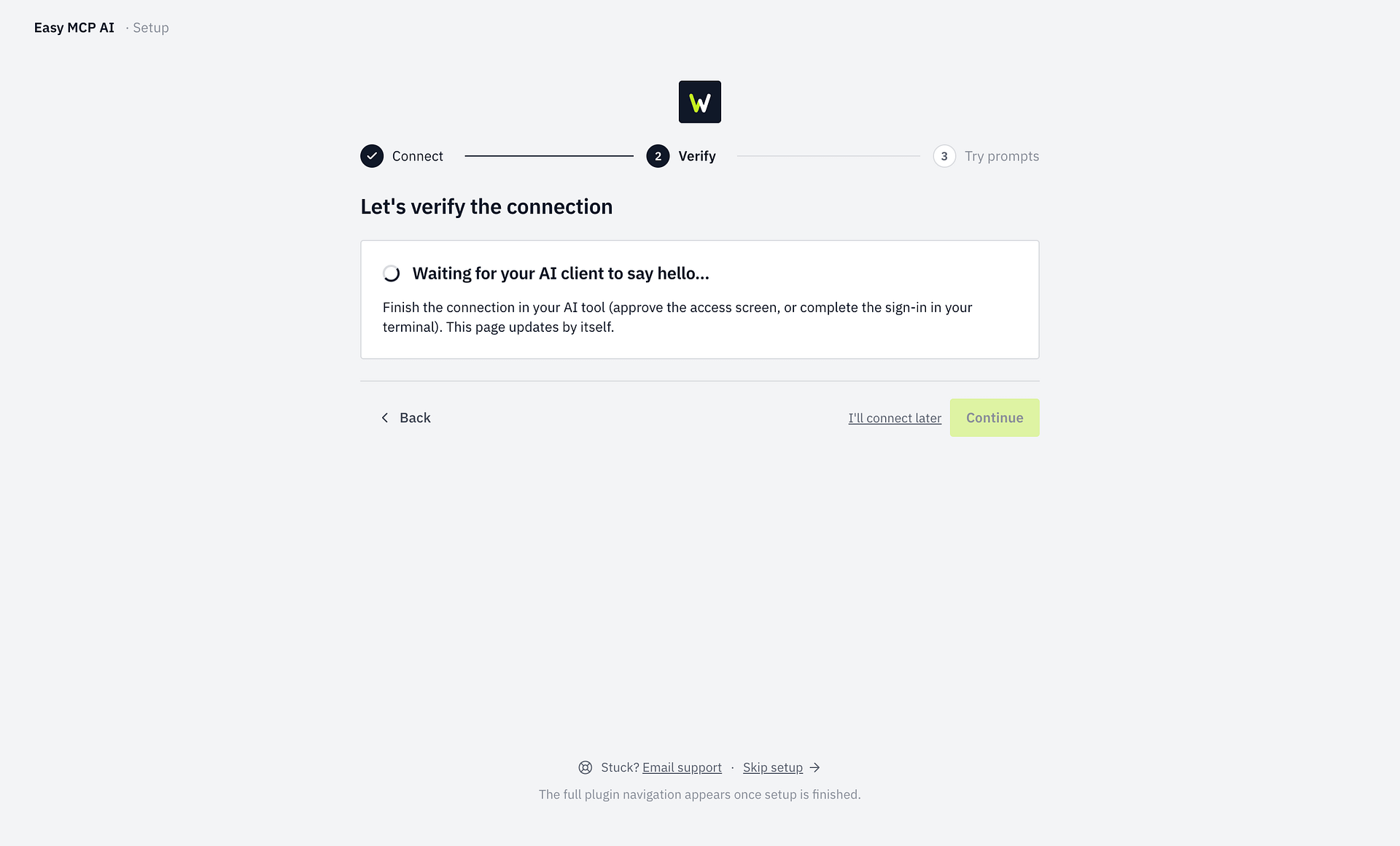
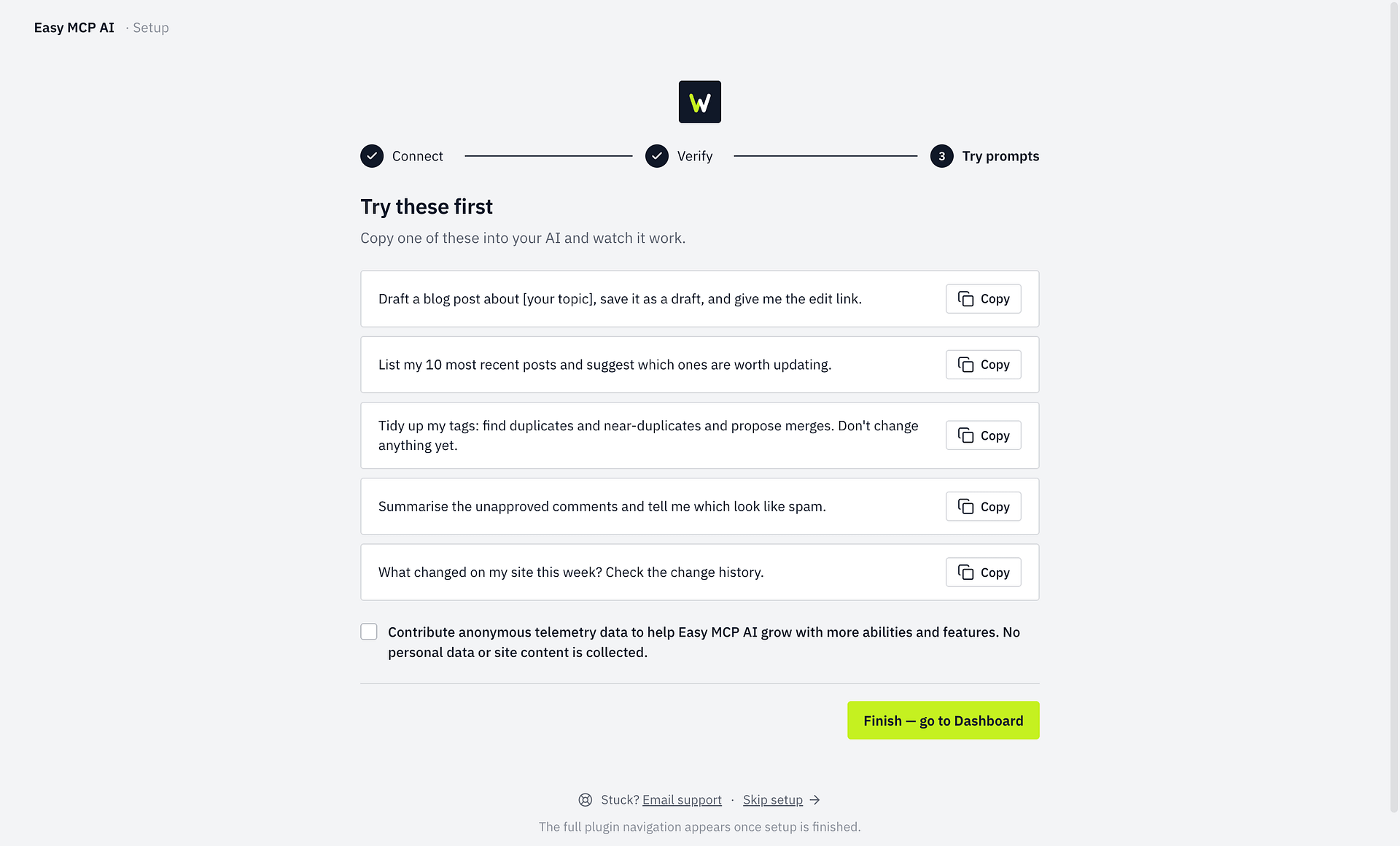
For client-specific connection instructions, choose your AI assistant:
- ChatGPT
- OpenAI Codex CLI
- Claude.ai
- Claude Code
- Claude Desktop & Cowork
- GitHub Copilot
- Google Antigravity
- Cursor
- OpenCode
- Manus
Using a different client? See How to Connect Other MCP Clients to WordPress.
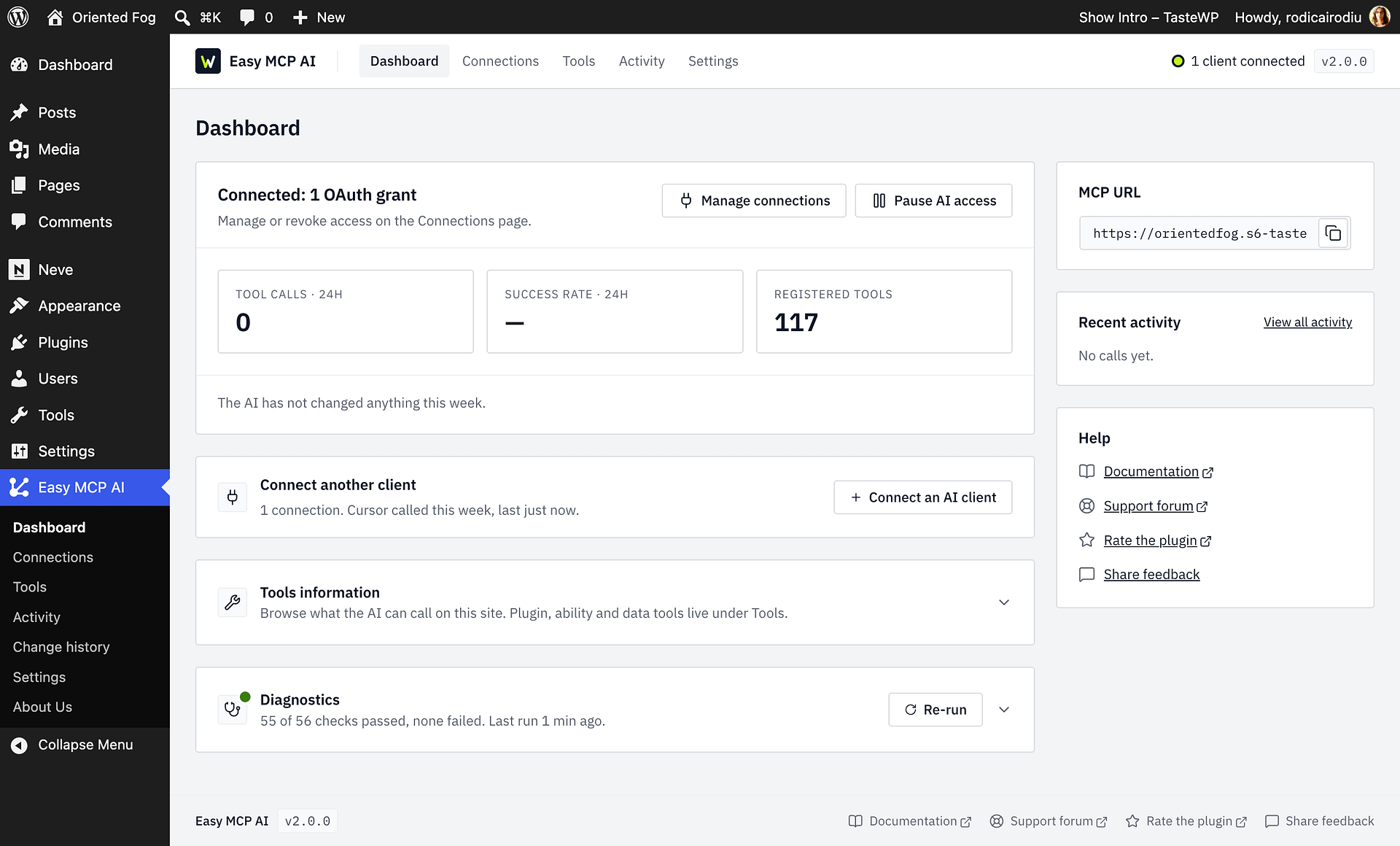
After you finish setup, Easy MCP AI takes you to the Dashboard, which shows what the AI changed on your site this week. The admin menu has five sections:
- Dashboard: Review the weekly overview of AI activity.
- Connections: Manage API tokens and OAuth grants.
- Tools: Control which WordPress capabilities AI clients can use.
- Activity: Review the audit and change history.
- Settings: Manage site-wide policy.
Clients that do not support OAuth can connect with a manually created API token instead. For instructions, see Creating and Managing API Tokens.
Video Resources
Frequently Asked Questions
Does Easy MCP AI cost money?
No. Easy MCP AI is free to install and use, with no subscription fees or paid plans. Installing it does not enroll you in a paid plan for any other WordPress plugin or external service, and it does not authorize those providers to charge you.
The AI service you connect may have its own independent pricing — for example, ChatGPT requires a paid plan to add custom connectors, as covered in How to Connect ChatGPT to WordPress. Likewise, if you integrate the premium edition of another plugin, its subscription is separate. You obtain those directly from their providers; installing Easy MCP AI does not purchase or activate them.
Is it safe to run on a live site?
Yes, when used over HTTPS. Every API request is authenticated via Bearer token, rate-limited, strictly capability-checked against standard WordPress roles, and fully logged in an internal audit log.
Why does the endpoint return 404?
Open Easy MCP AI > Dashboard and rerun Diagnostics. On Apache or LiteSpeed, if the Plain-permalink routing check fails, choose Keep Plain and route sign-in through .htaccess when offered; it adds the discovery and sign-in rules without changing your permalink structure, then automatically checks them again. nginx, Caddy, and IIS do not use .htaccess routing, so follow the server-specific guidance in Diagnostics or choose a non-Plain permalink structure. For more detail, see Troubleshooting Easy MCP AI Connection Issues.
Can I prevent my AI from deleting content?
Yes. Use one or more of these guardrails:
- Grant only read-only tools when creating a token.
- Turn on Ask before destructive actions under Easy MCP AI > Settings > Access & safety so destructive calls wait for your approval or denial in chat or on a secure approval page before they can run.
- Use Disabled tools under Easy MCP AI > Settings > Advanced to block selected destructive tools for every connection.
Does Easy MCP AI work with my page builder or plugin?
Easy MCP AI works with another plugin's features in two ways: through an integration built into Easy MCP AI, or through WordPress abilities that the plugin itself registers. Abilities require WordPress 6.9 or later.
To see which plugins currently register abilities, browse the Abilities Directory. On your site, go to Easy MCP AI > Tools and open the Abilities section. It lists the built-in integrations for your active plugins and every ability your other plugins have registered, grouped by plugin.
If your page builder or plugin isn't listed there, Easy MCP AI has no tools for it yet, and there is nothing to switch on. Adding abilities is up to that plugin's developer, so check with them about support for the WordPress Abilities API. Once its abilities appear, enable the ones you want and refresh your AI client's tool list, as described in Enabled Tools Not Showing in Your AI Client.
Security
If you identify a potential security vulnerability in this plugin, please disclose it responsibly. Follow the protocols on the Themeisle Security Page.