
Appearance
How to Connect LM Studio to WordPress
LM Studio runs AI models locally on your own computer and can connect to MCP servers, so a local model can read and manage your WordPress site through Easy MCP AI. This guide shows you how to add your site in LM Studio's MCP settings, keep the tool list small enough for a local model, and check that everything works.
In this article
Prerequisites
- A WordPress site served over HTTPS with Easy MCP AI installed and activated (see the installation guide).
- Pretty permalinks enabled (Settings > Permalinks set to anything other than "Plain").
- LM Studio installed, in a version that has an MCP section in its settings. If you don't see it, update LM Studio first.
- A model downloaded in LM Studio that supports tool use (also called function calling). Models without tool use can chat, but they never call WordPress.
You'll need your site's MCP endpoint URL, which is always your domain followed by /wp-json/easy-mcp-ai/v1/mcp:
https://yoursite.com/wp-json/easy-mcp-ai/v1/mcpYou can copy it from the MCP URL card in Easy MCP AI > Dashboard.
💡 Keep the tool list small for local models: The access level you grant decides which tools LM Studio sees, not only which ones it may call. With Full access, the model receives a description of every enabled tool with each message, which uses a large part of a local model's context window. Smaller models often get slow, ignore the tools, or pick the wrong one. Choosing Custom and granting only what you need (for example, posts, pages, and media) makes local models much more reliable.
Add Your Site in LM Studio
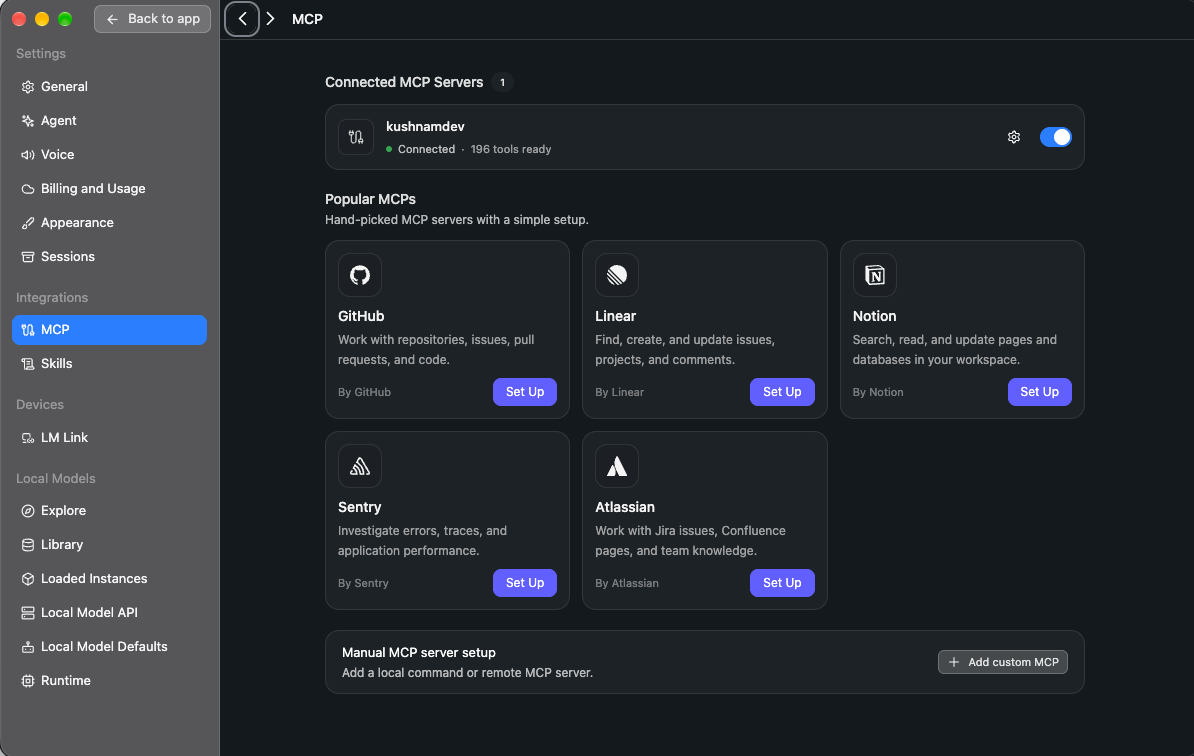
- In LM Studio, open Settings and select MCP under Integrations.
- Under Manual MCP server setup, click Add custom MCP.
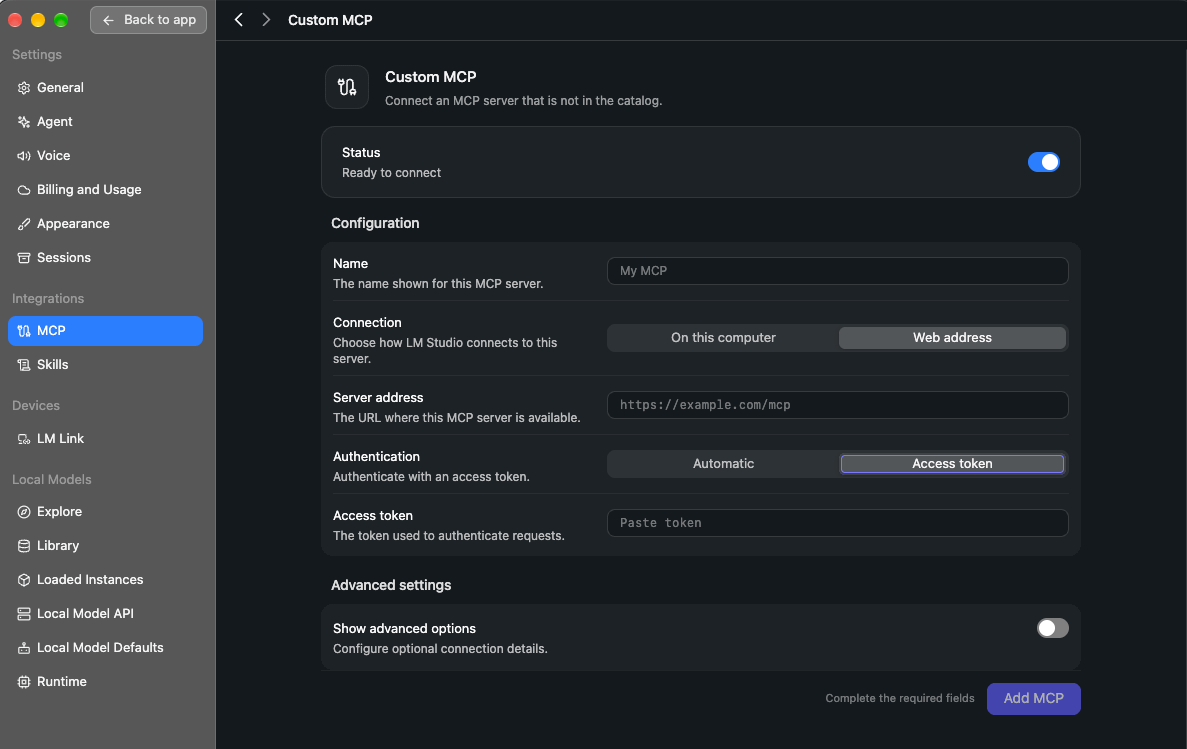
- Fill in the Configuration section:
- Name: something you'll recognize, such as
WordPress. - Connection: choose Web address.
- Server address: your MCP endpoint URL.
- Authentication: choose Automatic or Access token, as described in the two options below.
- Name: something you'll recognize, such as
Option 1: Use an API Token (Recommended)
An API token is the most reliable way to connect LM Studio.
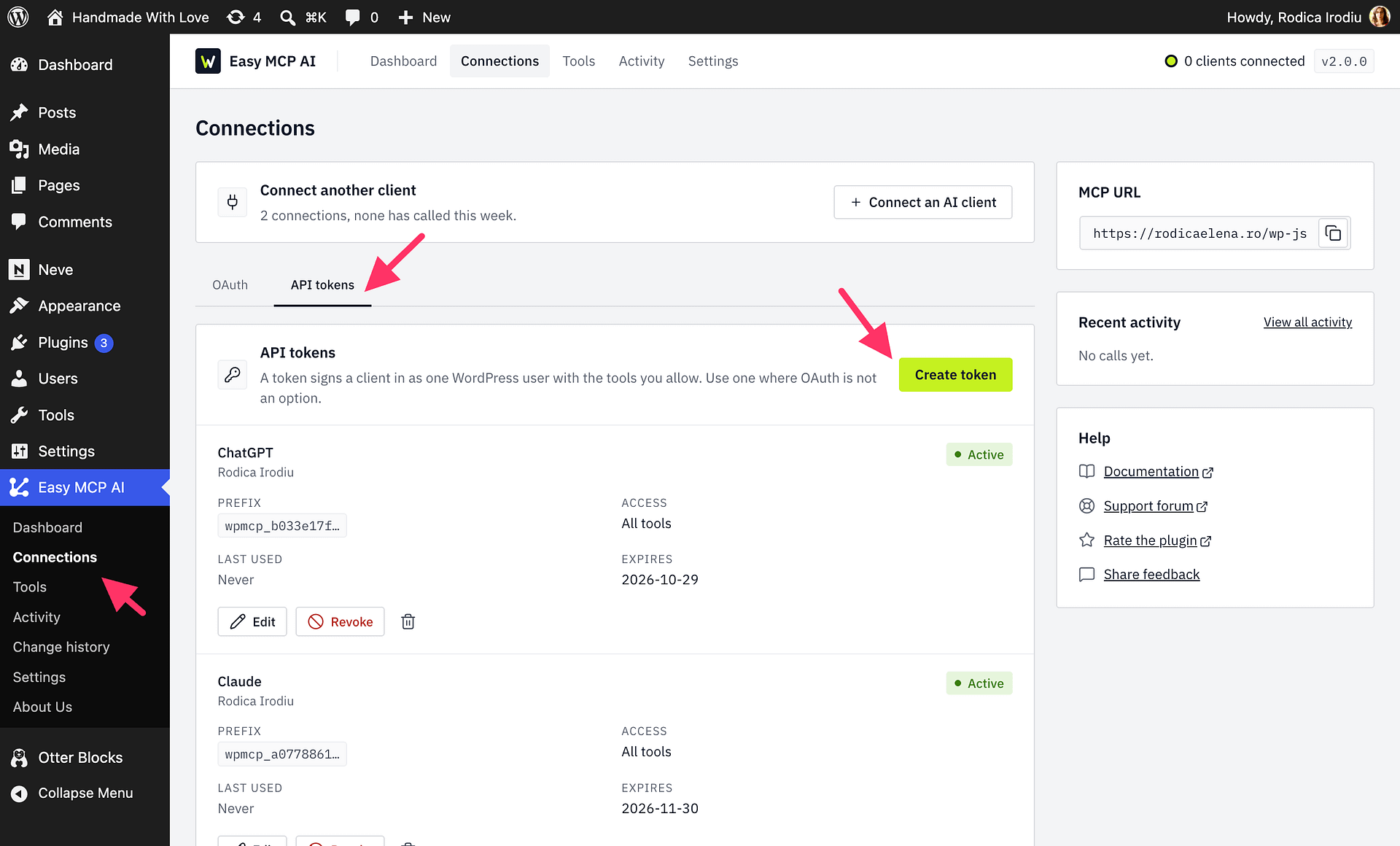
- In WordPress, go to Easy MCP AI > Connections and open the API tokens tab.
- Click Create token, give it a name such as
LM Studio, choose an Access level (Read-only, Full access or Custom), and click Create token. - Copy the token right away. It is shown only once.
- In LM Studio's Custom MCP form, set Authentication to Access token and paste the token.
- Click Add MCP. The server appears under Connected MCP Servers with a Connected status and the number of tools ready.
For expiration, user assignment, and managing tokens later, see Creating and Managing API Tokens.
Option 2: Sign In with Your Browser
If you prefer not to manage a token, set Authentication to Automatic instead. LM Studio then signs in to WordPress through your browser.
- Click Add MCP.
- Your browser opens a WordPress authorization page. Choose an access level (Read-only, Full access or Custom) and approve it.
- Back in LM Studio, the server appears under Connected MCP Servers with a Connected status and the number of tools ready.
See Managing OAuth Access in Easy MCP AI for access levels, grant management, and what to do after changing your site address.
📝 Prefer a config file? LM Studio also stores MCP servers in mcp.json, using the same format as Cursor. You can add the server there instead:
json
{
  "mcpServers": {
    "wordpress": {
      "url": "https://yoursite.com/wp-json/easy-mcp-ai/v1/mcp",
      "headers": {
        "Authorization": "Bearer YOUR_API_TOKEN"
      }
    }
  }
}
Verify the Connection
Load a model that supports tool use, start a new chat, and ask something that touches your site:
Which are the five most recent posts on my WordPress site, and which of them are still drafts?
LM Studio may ask you to confirm before the model runs a WordPress tool. Review the request and allow it. The model then answers with your real content.
Back in WordPress, the call appears under Recent activity on the Easy MCP AI > Dashboard sidebar.
Alternative: Connect Through the mcp-remote Bridge
If neither option above works in your LM Studio setup, connect through mcp-remote, a small bridge that runs on your computer and forwards LM Studio's requests to your site. It requires Node.js on your computer; your WordPress server needs nothing extra.
This uses an API token (see Option 1). Add the following to mcp.json in place of the "wordpress" block above:
json
{
  "mcpServers": {
    "wordpress": {
      "command": "npx",
      "args": [
        "-y",
        "mcp-remote",
        "https://yoursite.com/wp-json/easy-mcp-ai/v1/mcp",
        "--header",
        "Authorization:Bearer YOUR_API_TOKEN",
        "--transport",
        "http-only"
      ]
    }
  }
}
Keep Authorization:Bearer written without a space after the colon, exactly as shown.
Troubleshooting
The model never calls a WordPress tool. Check that the server shows Connected and is switched on in Settings > MCP and that the loaded model supports tool use. Try a different model if it still only replies with text.
Replies are very slow, or LM Studio reports that the context is full. Too many tools are being sent to the model. Reconnect with Custom access and fewer tools, or raise the model's context length in its load settings. After you change the tools a connection can use, LM Studio may need to reload the server to see the new list.
The server does not show Connected, or returns an authorization error. With Automatic, make sure you approved access on the WordPress page that opened in your browser. With Access token, make sure the token is copied in full, starts with wpmcp_, has not expired or been revoked, and was pasted without extra spaces. For firewall, CDN, and server issues, see Troubleshooting Easy MCP AI Connection Issues.
Control What LM Studio Can Access
The connection acts as the WordPress user who approved it (or the token's assigned user), so WordPress roles apply as usual. Site-wide guardrails (globally disabled tools, rate limits, forced drafts, audit log) apply on top. See Creating and Managing API Tokens for details.
Security
If you identify a potential security vulnerability in this plugin, please disclose it responsibly. Follow the protocols on the Themeisle Security Page.