

Appearance
How to Connect Claude.ai to WordPress
Connecting Claude.ai to your WordPress site lets you manage content from any browser chat: draft and edit posts, update pages, organize media and categories, or review comments, all without leaving the conversation. Easy MCP AI runs the MCP server inside WordPress, and Claude.ai connects to it as a custom connector over OAuth, so there is no API token to handle.
This guide is for Claude in the browser. If you use the desktop app or Cowork, see How to Connect Claude Desktop to WordPress. The flow is nearly identical.
In this article
Prerequisites
- A WordPress site served over HTTPS with Easy MCP AI installed and activated (see the installation guide).
- Pretty permalinks enabled (Settings > Permalinks set to anything other than "Plain").
- A Claude.ai account on a plan that supports custom connectors.
You'll need your site's MCP endpoint URL, which is always your domain followed by /wp-json/easy-mcp-ai/v1/mcp:
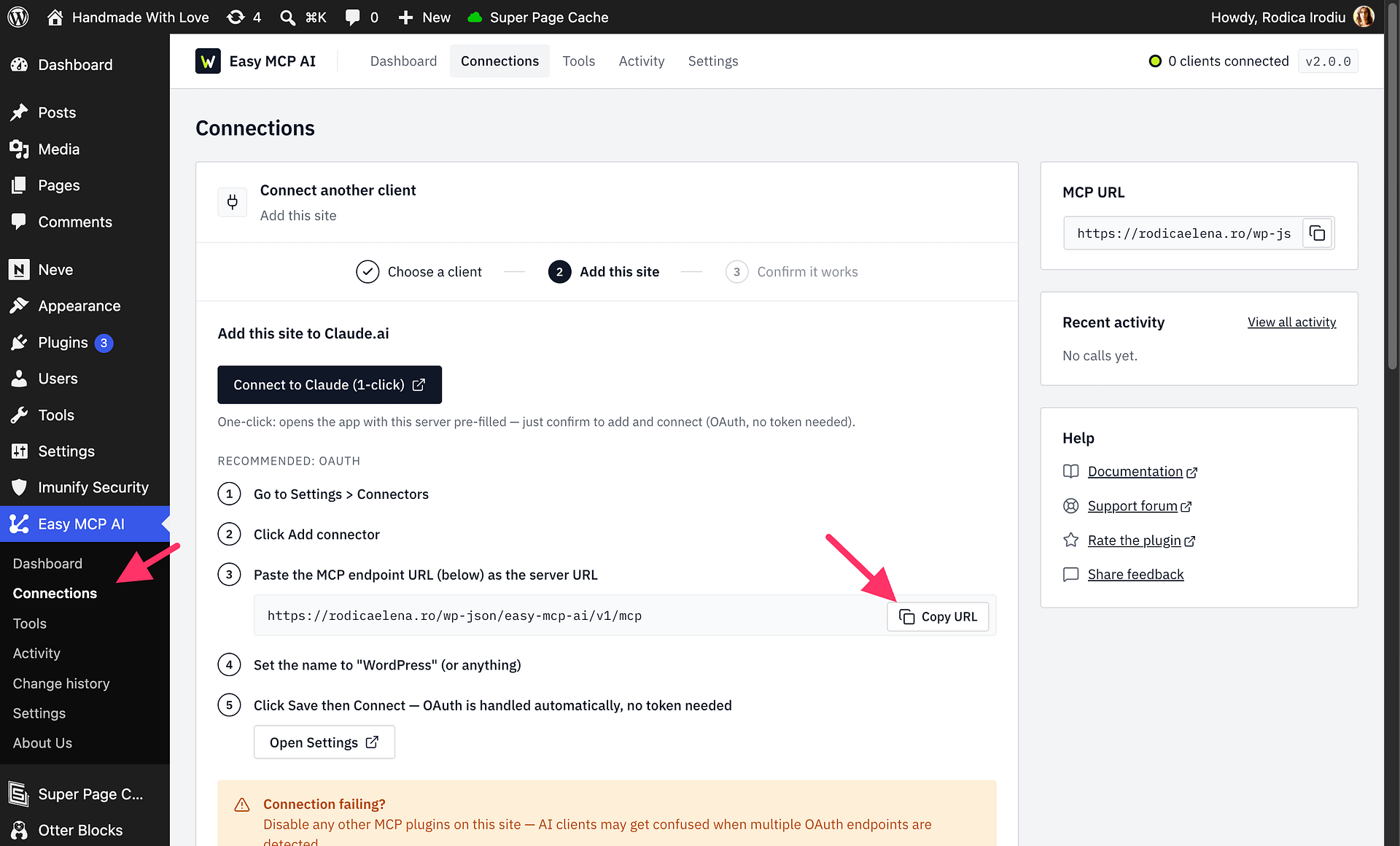
https://yoursite.com/wp-json/easy-mcp-ai/v1/mcpYou can copy it from Easy MCP AI > Dashboard in your WordPress admin: click Connect an AI client, choose your client, and copy the URL shown in the Add this site step.
Option 1: One-Click Connect
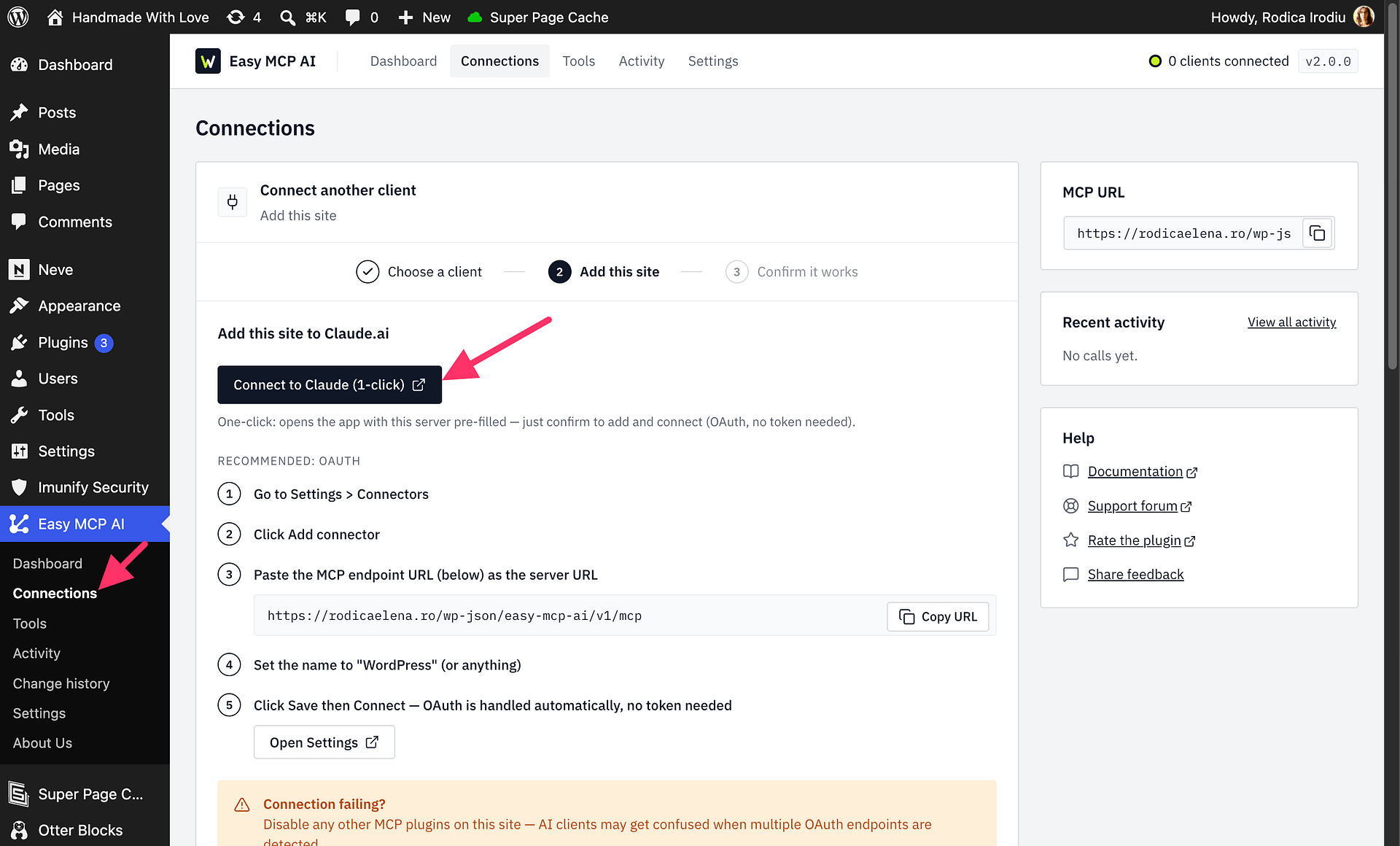
The fastest way is the Connect to Claude (1-click) button in your WordPress admin:
- Go to Easy MCP AI > Dashboard, click Connect an AI client and choose Claude.ai.
- Click Connect to Claude (1-click). Claude.ai opens with the connector dialog already pre-filled: the server name and your endpoint URL are set for you.
- Confirm to add the connector, then complete the login: a WordPress authorization page opens, where you choose an access level (Read-only, Full access or Custom) and approve the request.
Option 2: Add the Connector Manually
- In Claude.ai, go to Customize > Connectors.
- Click + Add, then Add custom connector.
- Set the name to "WordPress" (or anything you like), paste your MCP endpoint URL as the server URL, and click Continue.
- Keep the sign-in settings Claude detects and click Add.
- A WordPress authorization page opens. Log in if prompted, choose an access level (Read-only, Full access or Custom), and approve the request.
Either way, OAuth is handled automatically. No token needed.
See Managing OAuth Access in Easy MCP AI for access levels, grant management, and what to do after changing your site address.
Verify the Connection
Back on the Easy MCP AI Dashboard, the top of the page shows Connected: 1 OAuth grant (a higher number if you already had other connections). Once your AI client calls a tool, the call appears under Recent activity in the Dashboard sidebar.
The connector shows as connected in Customize > Connectors, and the WordPress tools appear in the tools menu of a new chat.
Try a first prompt:
Which are the five most recent posts on my site, and which of them are still drafts?
Claude asks for permission the first time it uses a WordPress tool, then lists your posts.
Alternative: Connect with an API Token
If your setup can't use OAuth, you can add a connector whose URL carries an API token instead:
- Create an API token in Easy MCP AI > Connections (API tokens tab) and copy it.
- Add a connector as above, but use your endpoint URL with the token appended:
https://yoursite.com/wp-json/easy-mcp-ai/v1/mcp/YOUR_API_TOKENReplace YOUR_API_TOKEN with your actual token (it starts with wpmcp_). Treat this as a fallback: tokens in URLs can end up in server logs and browser history, so prefer OAuth when available. This method does not work on a site that accepts API keys only in the Authorization header; see Keep API Keys Out of URLs.
What You Can Do Once Connected
Easy MCP AI exposes your site's capabilities as MCP tools, organized by area: posts, pages, media, comments, categories and tags, menus, custom post types, blocks, revisions, users, plugins, themes, site settings, and search. Integrations such as WooCommerce and SEO data sources are included when available. What Claude can actually touch is always bounded by the WordPress user's role and your plugin settings.
Some things to try:
Draft a 600-word post about our new spring collection and save it as a draft.
Find every page that still mentions our old phone number and update it.
Show me the comments awaiting moderation and summarize what they're about.
Control What Claude Can Access
The connection acts as the WordPress user who approved it (or the token's assigned user), so WordPress roles apply as usual. On top of that, you can globally disable sensitive tools such as deletions, user management, and site settings. You can also set rate limits, force AI-created posts to stay drafts, and review every action in the audit log. See Creating and Managing API Tokens for all the guardrails.
Video Resources
Security
If you identify a potential security vulnerability in this plugin, please disclose it responsibly. Follow the protocols on the Themeisle Security Page.