
Appearance
Managing OAuth Access in Easy MCP AI
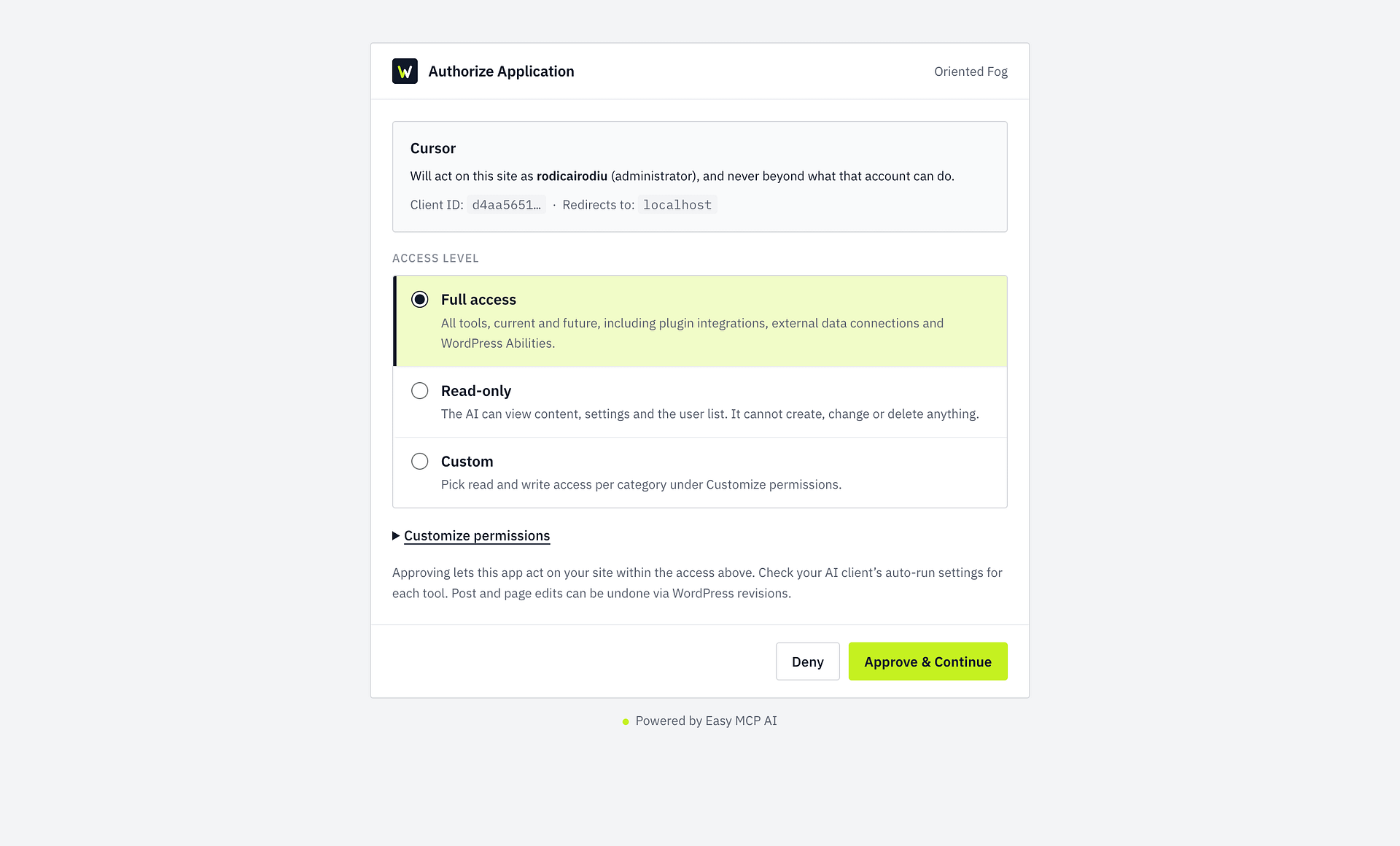
When an OAuth-capable AI client connects, WordPress shows an Easy MCP AI consent screen before issuing credentials.
In this article
Choose an access level
The consent screen shows the access requested by the AI client. Choose the smallest level that supports what you want the client to do:
- Read-only allows the client to inspect content and settings without changing them.
- Full access allows all current and future tools within the connected WordPress user's permissions, but only when the client requested full MCP access.
- Custom lets you approve read and write access by category. Select or clear categories to decide which areas the client can use.
Easy MCP AI never grants more scope than the client requested. For example, choosing Full access cannot add permissions that the client did not request.
Review, edit, or revoke a grant
- In WordPress, open Easy MCP AI > Connections > OAuth.
- Review each grant's WordPress user, client, access level, and activity.
- Click Edit scope to narrow the permissions for a grant, or click Revoke to disconnect the client and invalidate its OAuth credentials.
After a site address change
OAuth credentials are tied to the MCP resource URL where they were issued. After you change your site's address, grants issued for the previous address are marked in Connections > OAuth and no longer authenticate at the new address.
Use Revoke grants in the site-move notice to remove credentials issued for the previous address. This does not revoke grants issued for the current address.
Each affected AI client must authorize again from the new address. Update the client with the new MCP endpoint, start its OAuth connection, and approve the requested access. Grants issued for the current address continue to work.