
Appearance
Manage Redirects and 404 Logs with AI
Use Easy MCP AI to ask an AI client to review your Redirection data and manage redirects. This guide explains how to enable the integration and what its tools can do.
In this article
Before you begin
Install and activate the Redirection plugin, then finish its setup under Tools > Redirection.
Enable the Redirection integration
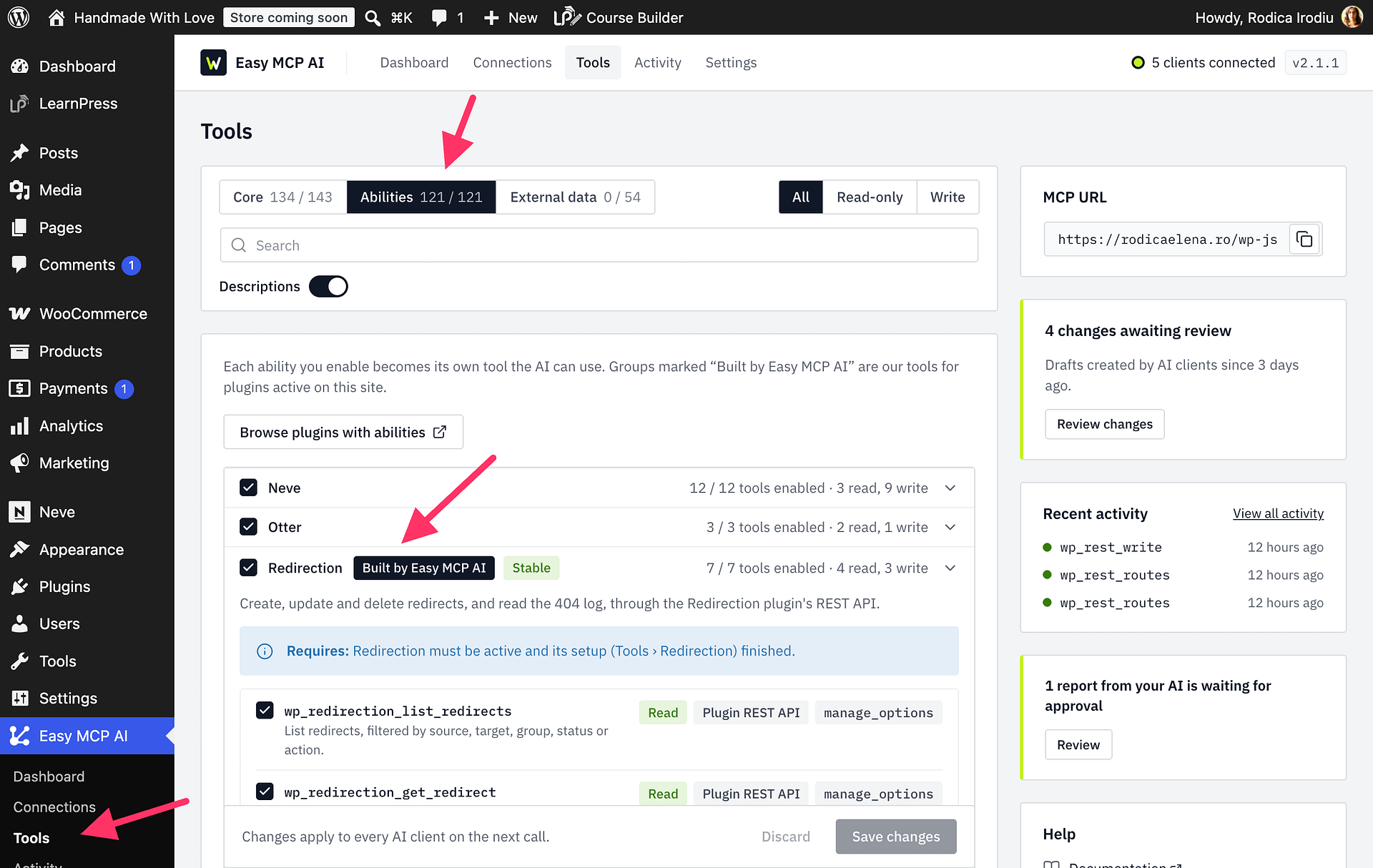
- In WordPress, go to Easy MCP AI > Tools and open Abilities.
- Find the Redirection integration, switch it on, and click Save changes. The integration is off by default.
What the Redirection tools can do
Once enabled, the integration provides these tools:
wp_redirection_list_redirectssearches and filters redirects.wp_redirection_get_redirectreads one redirect.wp_redirection_create_redirectcreates a redirect. Its action values areurl,pass,error,random, andnothing.wp_redirection_update_redirectchanges only the fields you send. Setenabled: falseto switch a redirect off.wp_redirection_delete_redirectspermanently deletes up to 100 redirects. Deleted redirects do not go to a trash folder.wp_redirection_list_groupslists redirect groups forgroup_id.wp_redirection_list_404sreviews the 404 log. Usegroup_by: urlto find broken URLs that may be worth redirecting.
Try these prompts
Ask your AI client:
Show the 404 URLs hit most often and suggest redirects.Redirect /old-page to /new-page with a 301.
Redirection's own permission rules apply to these tools. By default, they require the manage_options capability.