

Appearance
Manage Divi Performance Settings with AI
Use Easy MCP AI to read and update the Divi Theme Options > General > Performance settings available on your site. Read the available options first so you use names and values supported by your installed Divi version.
In this article
Before you start
The Divi theme must be active on your site. Your connected WordPress account must have Divi Theme Options permission and the edit_theme_options capability. A capability is a WordPress permission; edit_theme_options allows the account to edit theme options.
Enable both Divi tools and allow your AI connection to use them:
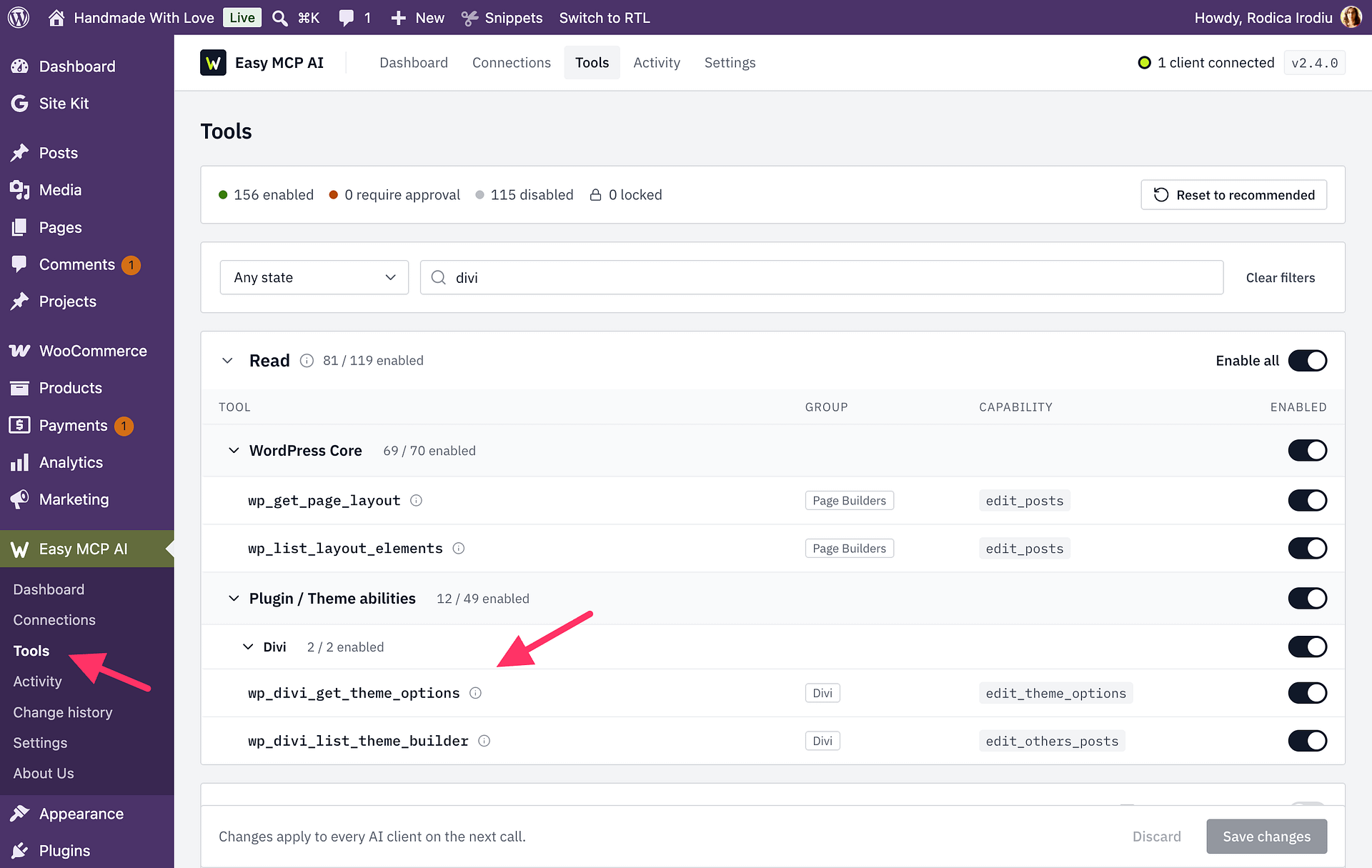
- In WordPress, go to Easy MCP AI > Tools.
- Search for
wp_divi_get_theme_options, expand its row, and enable it. Repeat forwp_divi_update_theme_options. - Click Save changes.
- Make sure the connection your AI client uses is allowed to use both tools. For an API key, see Creating and Managing API Tokens; for an OAuth connection, see Managing OAuth Access.
Read the available settings
Ask your AI client to call wp_divi_get_theme_options without arguments. The returned settings list describes the options available in the active Divi installation. Each entry includes the setting name, label, type, current value, default, and—when it is a select option—the values you can choose.
Use this result as the source for your update. Divi versions can expose different options, so do not assume a setting or value shown elsewhere is available on your site.
Change performance settings
Ask your AI client to call wp_divi_update_theme_options with a settings object. In that object, map each exact setting name from the wp_divi_get_theme_options result to the value you want:
- For a switch, use a boolean value:
trueto turn it on orfalseto turn it off. - For a select option, use one of the allowed values returned for that setting.
The update checks the entire request before saving. If a setting is not available or any value is invalid, the tool refuses the whole call and makes no changes. If this happens, read the available settings again, correct the setting name or value, and retry the update.
After a successful call, review updated, changed, unchanged, and the returned settings to see which values were updated and confirm the current values.
Easy MCP AI automatically clears Divi-generated cached CSS and JavaScript for every page after a change. Divi rebuilds these files as pages are visited again. Check the public site after changing performance options.