

Appearance
How to Connect Gemini to WordPress
Connecting the Gemini app to your WordPress site lets you manage content from a Gemini chat: draft and edit posts, update pages, organize media, or review comments. Easy MCP AI runs the MCP server inside WordPress, and Gemini connects to it as a custom app over OAuth.
In this article
Prerequisites
- A WordPress site served over HTTPS with Easy MCP AI installed and activated (see the installation guide). The site must be reachable from the internet, because Google connects to it directly. A local site such as
mysite.testorlocalhostdoes not work. - Pretty permalinks enabled (Settings > Permalinks set to anything other than "Plain").
- A Google account that can add custom apps in Gemini. Google limits custom apps by account type, age, country and language, and these limits change. Check Google's help page on custom apps before you start.
You'll need your site's MCP endpoint URL, which is always your domain followed by /wp-json/easy-mcp-ai/v1/mcp:
https://yoursite.com/wp-json/easy-mcp-ai/v1/mcpYou can copy it from Easy MCP AI > Dashboard in your WordPress admin, where it is shown in the sidebar as MCP URL.
Connect Gemini to Your Site
- Open Connected apps in Gemini. On the Connectors tab, click + Custom.
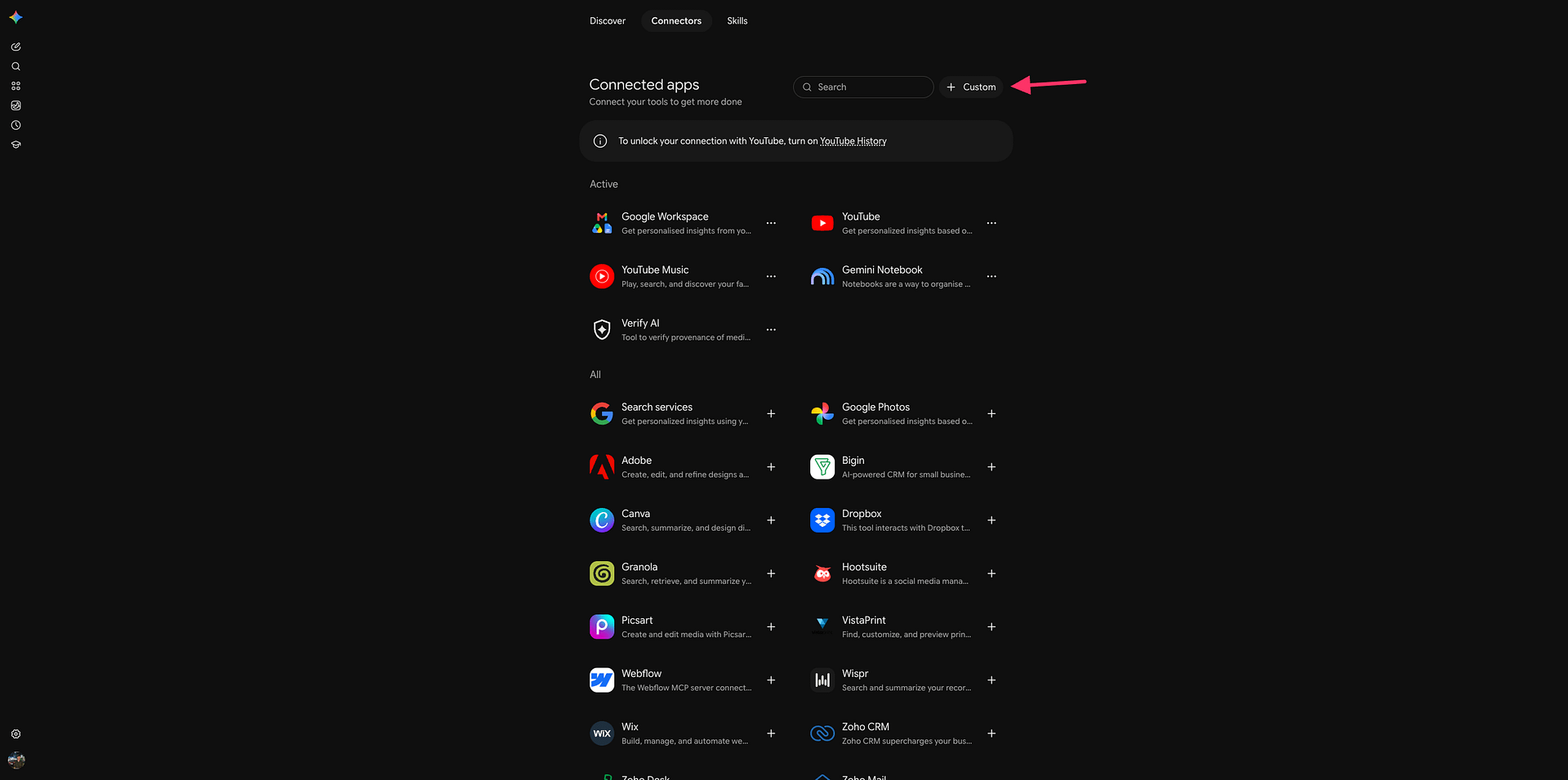
- In the Connect to an MCP server window, paste your MCP endpoint URL into MCP server URL. Leave Additional settings as they are, then click Next.
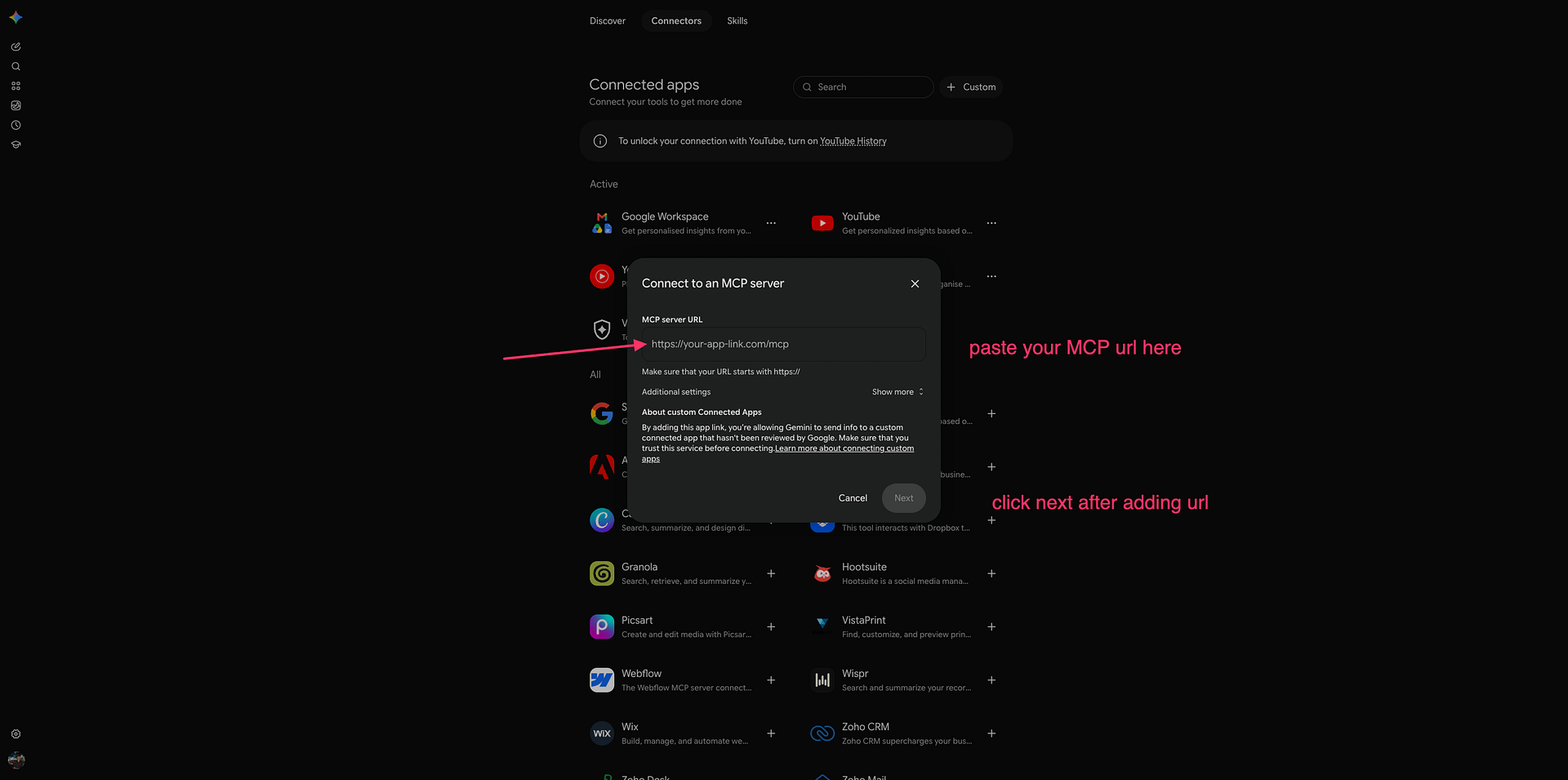
- The Connect this MCP server window lists what Gemini will be able to do and warns about the security and privacy risks of custom apps. This appears for every custom app and does not indicate a problem with your site. Tick I understand and accept the security and privacy risks of connecting this custom app, then click Connect.
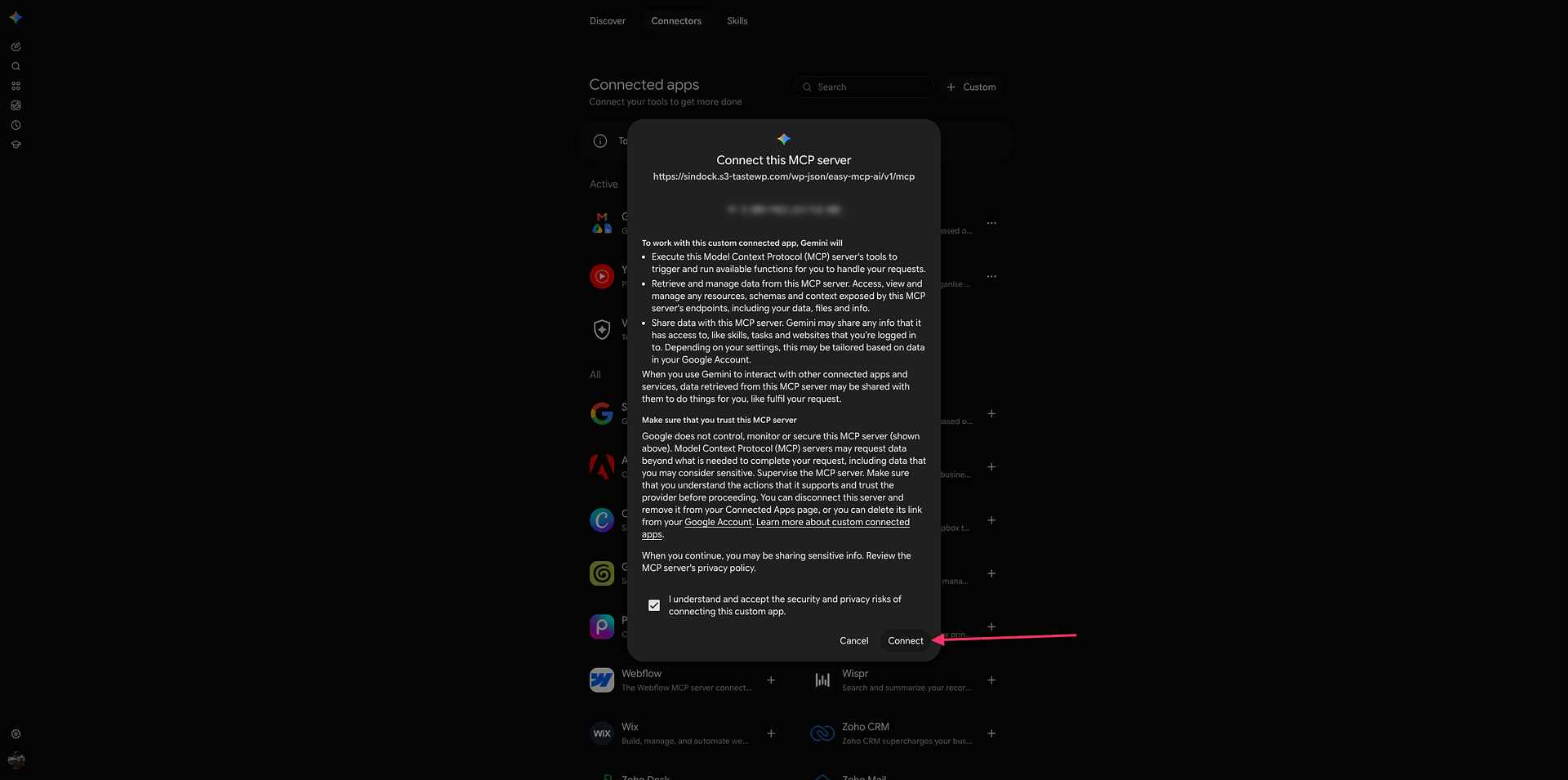
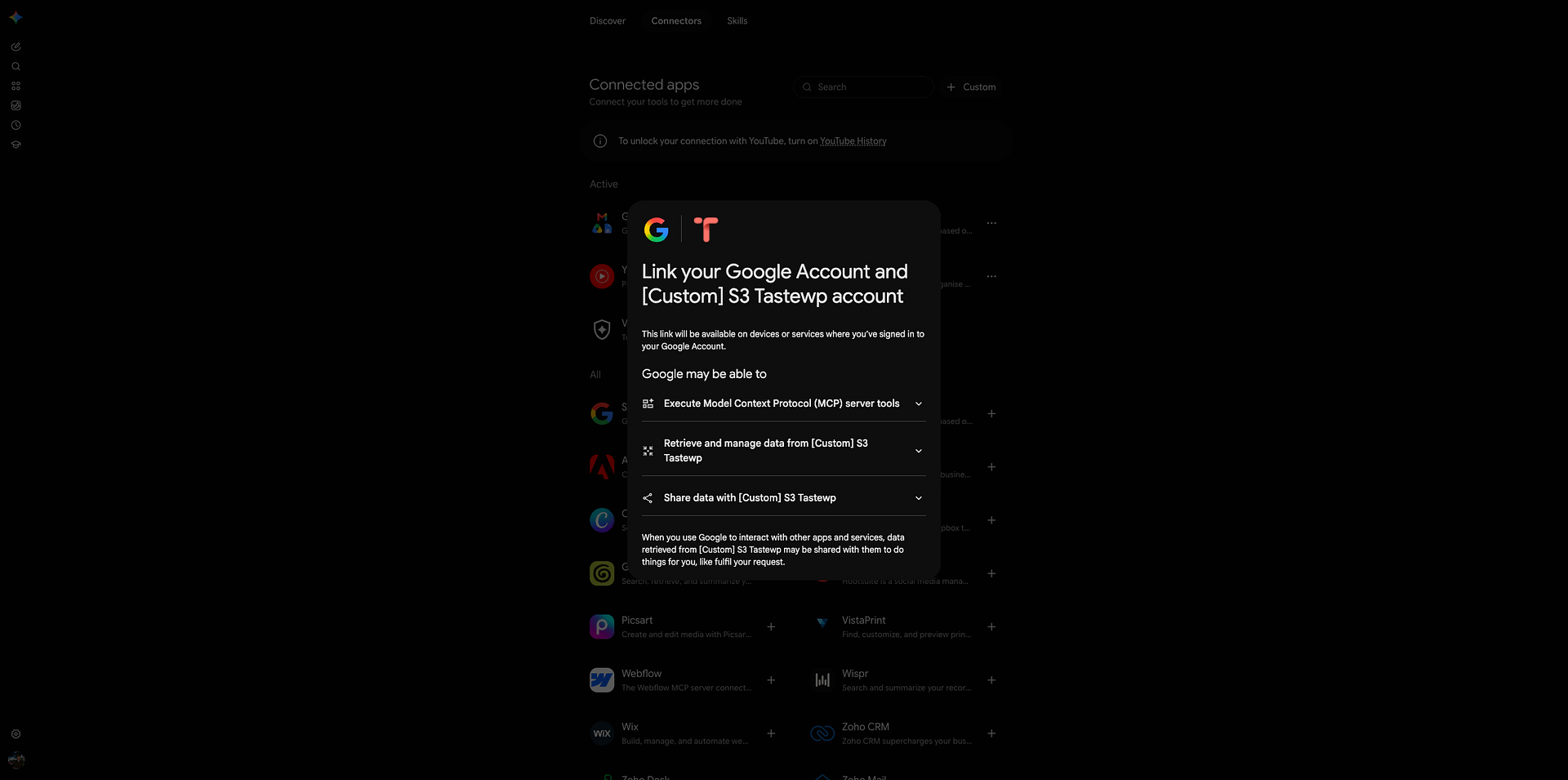
- Google shows a Link your Google Account screen naming your site as a custom account. Continue to link it.
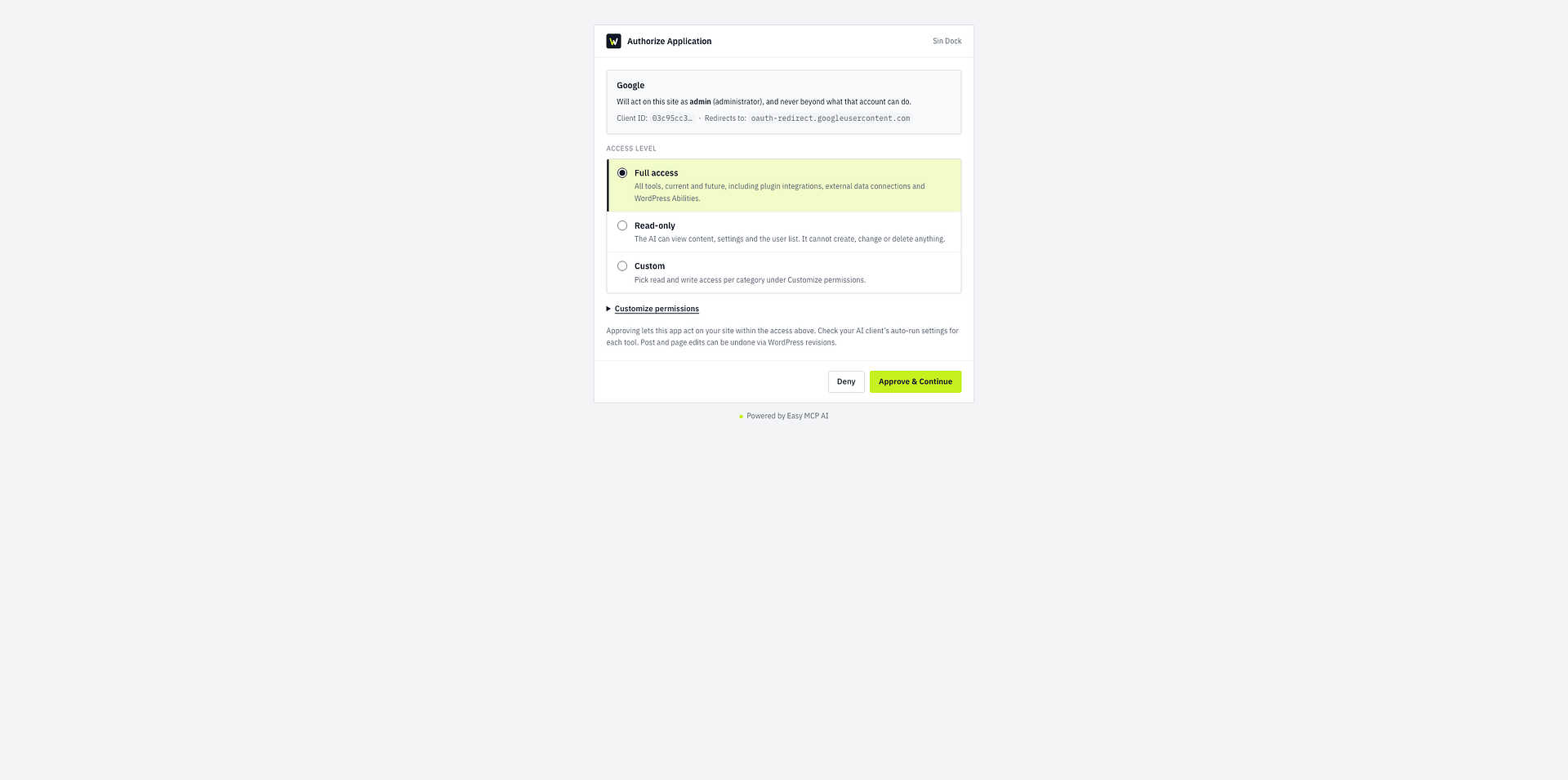
- The WordPress authorization page opens. Sign in to WordPress if asked, choose an access level (Read-only, Full access or Custom) and click Approve & Continue. You are returned to Gemini. No token is needed.
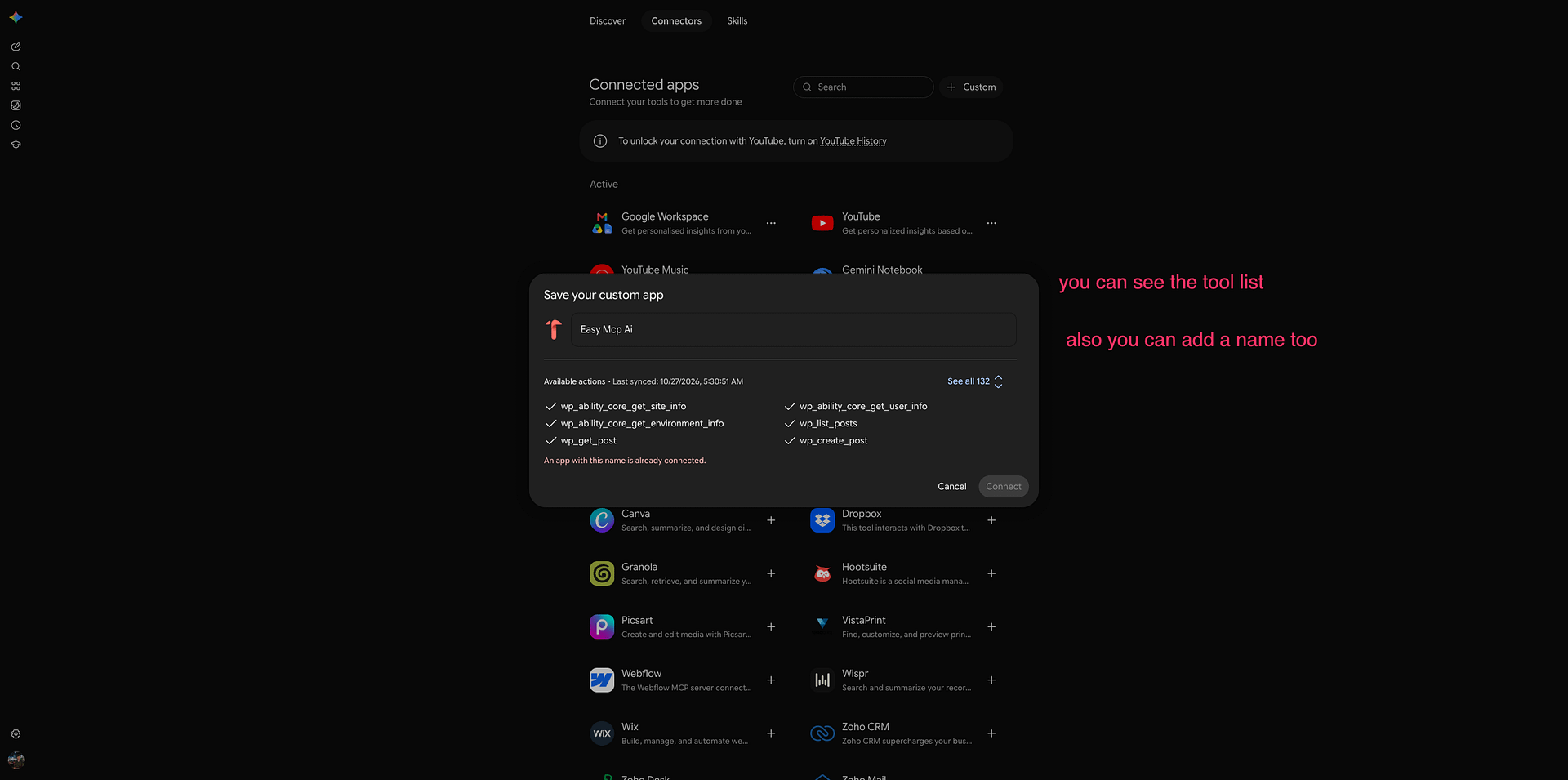
In the Save your custom app window, enter a name for the app, for example "WordPress". The window also lists the tools Gemini found on your site under Available actions. Click Connect to finish.
If the window shows An app with this name is already connected, choose a different name.
Gemini registers itself on your site automatically and appears as Google under Easy MCP AI > Connections (OAuth tab). See Managing OAuth Access in Easy MCP AI for access levels, grant management, and how to revoke access.
If the authorization page stays open after you click Approve & Continue, update Easy MCP AI to the latest version and connect again. If Gemini opens your site's homepage instead of the authorization page, a caching, security, or maintenance/coming-soon layer can be replacing it: follow Troubleshooting Easy MCP AI Connection Issues to run the diagnostics and the internet test.
Verify the Connection
Back on the Easy MCP AI Dashboard, the top of the page shows Connected: 1 OAuth grant. (If you already had other connections, the number is higher.)
To check that Gemini can reach your site, open a new chat, type @, pick your site from the list, and ask something simple, such as:
Which are the five most recent posts on my site, and which of them are still drafts?
The call appears under Recent activity in the Dashboard sidebar.
If nothing reaches your site, click Run diagnostics on the Dashboard, or remove the app under Settings > Connected Apps in Gemini, add it again and start a new chat. If tools are missing, see Enabled Tools Not Showing in Your AI Client.
Control What Gemini Can Access
The connection acts as the WordPress user who approved it, so WordPress roles apply as usual. On top of that, you can globally disable sensitive tools such as deletions, user management, and site settings. You can also set rate limits, force AI-created posts to stay drafts, and review every action in the audit log. See Creating and Managing API Tokens for all the guardrails.
Security
If you identify a potential security vulnerability in this plugin, please disclose it responsibly. Follow the protocols on the Themeisle Security Page.